1. To update your payment details you will need to go into the "Configuration" tab.

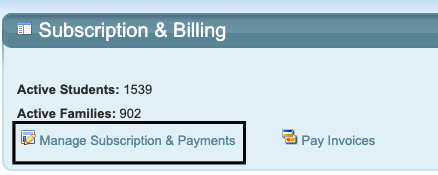
2. Under "Your Subscription" click on "Manage Subscription & Payments".
3. This will open your subscription information, and you update payment methods, account information, billing and shipping address and view your billing history.
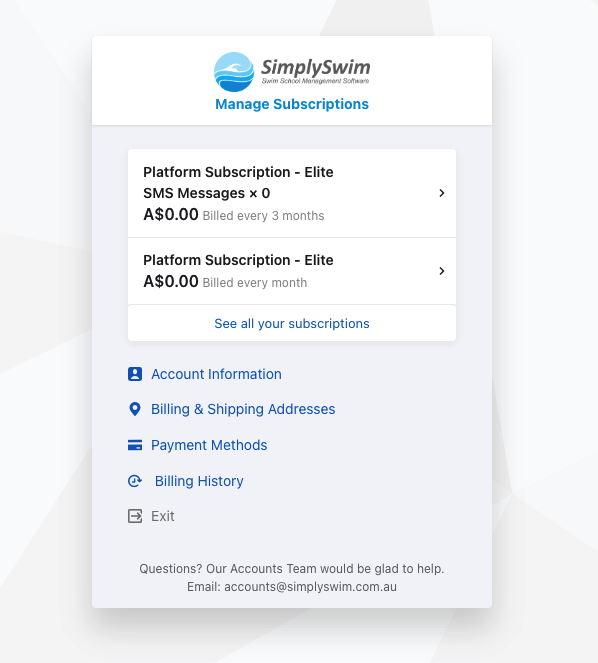
4. To add a new card, click on " Payment Methods", "Add New", enter your details and click on the blue "Add" button.
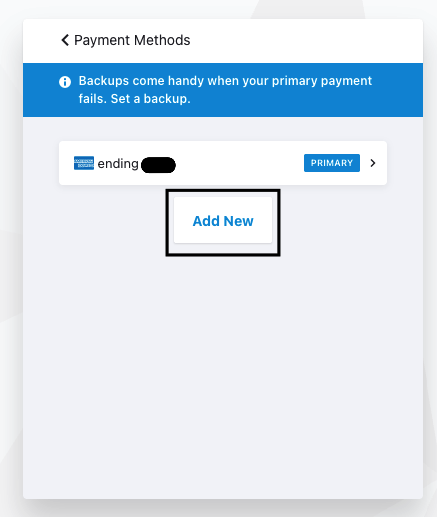
5. Your subscription payments will now be debited from the details you have provided.
To upgrade your subscription, please see this article: How to Change your Subscription Plan
Last updated 29th May 2026 by Georgia McGrath
Was this article helpful?
That’s Great!
Thank you for your feedback
Sorry! We couldn't be helpful
Thank you for your feedback
Feedback sent
We appreciate your effort and will try to fix the article