How to change your pricing
Go to Configuration -> Price Level.
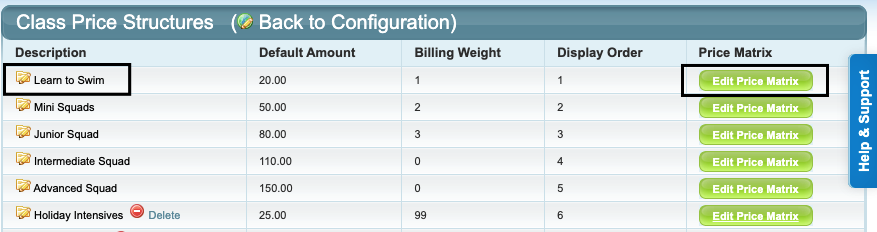
Click on the name (Description) of the Price Level, update the "Default Per Class Amount" price and click "Save Changes".
If the Price Matrix has been completed for that Price Level, click on "Edit Price Matrix" and update your pricing there as well. (Remember: A blank field will charge the Default price amount. The Price Matrix only needs to be completed if discounted pricing is applicable).
Example:
When to change your pricing
Pricing updates need to be made BEFORE running billing.
The new pricing becomes effective as soon as the price update is saved.
No changes will occur to already billed enrolments. All new enrolments will be billed at your new price levels from the date of the change.
For tips on how to deal with any change of enrolment in the time between price changes, see below.
FAQS / Tips / Reminders:
Does a new price level need to be created each time pricing changes or can I edit my existing price levels?
Best practice is to edit your existing price levels.
Classes and enrolments are linked to existing price levels. Creating new price levels would require editing your existing classes and/or enrolments to link to the new pricing, whereas editing the price level will update the amount invoiced to match the new level on the price structure automatically.
Will any already invoiced amounts be changed?
No. Any amounts already invoiced will not be affected or changed.
It will not impact upon your Direct Debit for any amounts already invoiced.
If a student's enrolment is changed after the pricing has been updated, they would be credited back at the amount they were originally invoiced. Their new enrolment would be charged at the new updated price. If you want to charge them the "old" pricing for the remainder of the current block and the new pricing from the start of the new block, you can create a POS Item for the difference in the pricing (e.g. if the pricing has increased by 1.00 per lesson, create the item for -1.00) and "Add Invoice" to the family account for the number of lessons it applies to, or, you can create two enrolments: 1) for the remaining lessons in the current block with a special price, and 2) an enrolment from the start of the next block without a special price.
Reminders:
It is best practice to communicate your price increase to your families prior to the increase. To see how to send out a Communication Campaign to families, refer to: Creating Email & SMS Campaigns.
To set up additional price levels, refer to this article: Setting up a Price Level and Price Matrix (lesson pricing).
Last updated 30 April 2026
Was this article helpful?
That’s Great!
Thank you for your feedback
Sorry! We couldn't be helpful
Thank you for your feedback
Feedback sent
We appreciate your effort and will try to fix the article