 Elite
EliteFor an overview on how Online Bookings works, refer to: Online Program Bookings: Overview.
A setup guide is detailed below to help you create your Class Match Framework for online enrolments.
Introduction
Our industry-first Class Match Framework guides a family to the most suitable enrolment outcome when creating an Online Booking.
Before creating your questions we recommend you take a look at your levels and break them down into basic categories. The questions in your framework are not intended to be asked for each skill in each level of your program but rather the major or key milestones for each grouping.
The first question by default is for the student's date of birth. The date of birth will automatically trigger the correct questions for that age group based on your configured settings.
We recommend limiting the total number of additional questions to 4 or 5 as families are going to be answering questions for each student they want to enrol, as well as entering in their family details.
We recommend that you have online payments if you are wanting to take a deposit or payment for the enrolment. If you have not already got an online payment account set up, you can start the process here: Online Payments Account Application.
Setup Guide
1. From Configuration go to New Enrolment Types & Outcomes under the 'Family Portal Preferences' heading.
2. Click on Add Online Enrolment Type.
3. Complete each of the fields and click on "Save Online Enrolment Type". Once saved, you will be able to add in your questions to build your Class Match Framework.
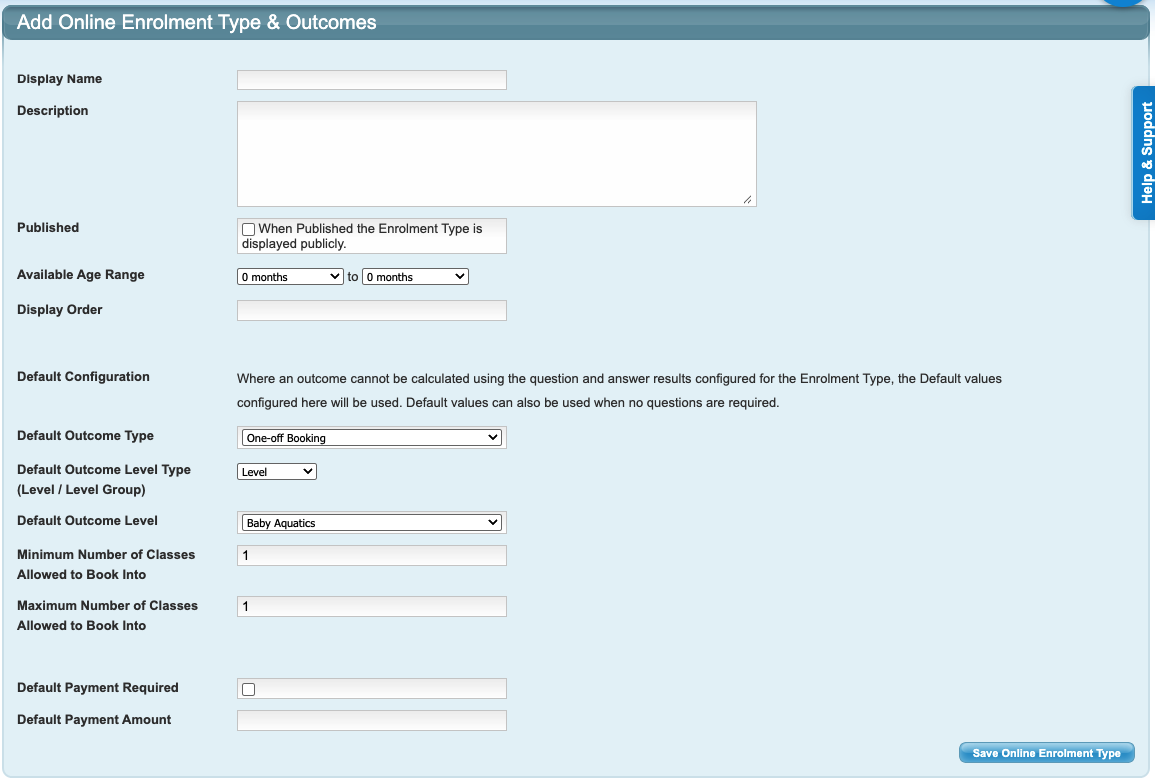
Setting | Configuration |
Display Name | This is the name of the Enrolment Type program that will be displayed in the portal. |
Description | Provide a brief description of the program. |
Published | Ticked: this Enrolment Type will be displayed publicly for online bookings and enrolment changes. Not ticked: does not display publicly so is not available for bookings. |
Available Age Range | Select the minimum and maximum age ranges for bookings allowed into this enrolment type. NOTE: Age ranges can overlap with other enrolment types and the DOB entered along with answers to your configured questions will help guide the booking into the most appropriate enrolment outcome. |
Display Order | Enter a display order. |
Default Configuration | Where an outcome cannot be calculated using the question and answer results configured for the Enrolment Type, the Default values will be used. Default values can also be used when no questions are required (e.g. into an Assessment or a Babies class). |
Default Outcome Type | Select one of two options: Ongoing Enrolment: creates a recurring / ongoing enrolment into a class. One-off Booking: creates a single, one-off booking (e.g. into an Assessment Class). |
Default Outcome Level Type (Level / Level Group) | Select one of two options: Level: enrols into the selected Level in the "Default Outcome Level" selection. Level Group: enrols into the selected Level Group in the "Default Outcome Level" selection. |
Default Outcome Level | Select the Level or Level Group from the dropdown menu. |
Minimum Number of Classes Allowed to Book into | Enter a number into the field. This would generally be 1 as a minimum number. |
Maximum Number of Classes Allowed to Book into | Enter a number into the field if you have a maximum allowed to book into per week. |
Default Payment Required | Ticked: enforces the default payment amount required configured below. We recommend having online payments enabled so that families can make payment immediately. Not ticked: a default payment is not required to complete the booking. |
Default Payment Amount | Enter the amount of the default payment required (e.g. 60.00). For example you may require the first two lesson fees paid upfront to secure the booking. |
4. Click on the Enrolment Type from your list and click on "Add Question".
Complete the fields and repeat the process to continuing adding more questions if needed.
NOTE: The first question asked is always for Date of Birth so this does not need to be added to your questions.
TIP: Limit your questions to 4 or 5 total - focus on those big picture milestones. Keep in mind families will need to answer these questions for each student as well as entering their family details. Keeping questions to a minimum stops the question fatigue and keeps them focused and motivated to complete the process.
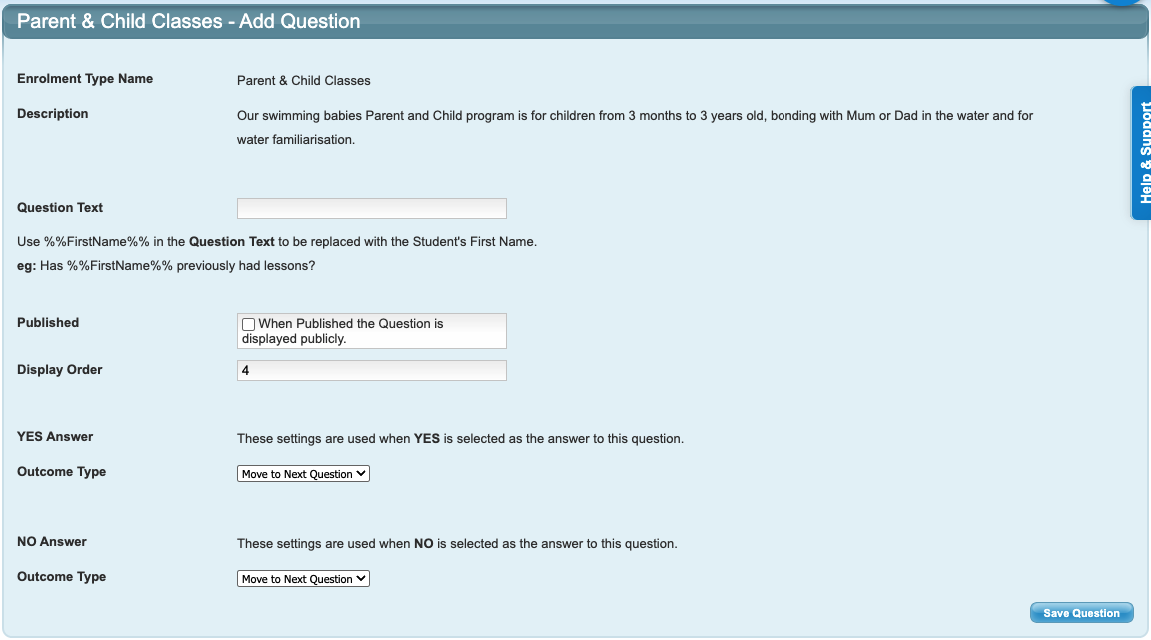
Setting | Configuration |
Question Text | Enter your question. Use %%FirstName%% for the student name to populate and personalise the question. Example: Has %%FirstName%% had previous lessons? |
Published | Ticked: this Question will be displayed publicly for online bookings and enrolment changes. Not ticked: does not display publicly so is not available for bookings. |
Display Order | Enter a display order for the question. |
YES Answer Outcome Type | This setting is used when YES is selected as the answer to this question. Select from the dropdown:
|
NO Answer Outcome Type | This setting is used when NO is selected as the answer to this question. Select from the dropdown:
|
Questions and Enrolment Types can be edited as required.
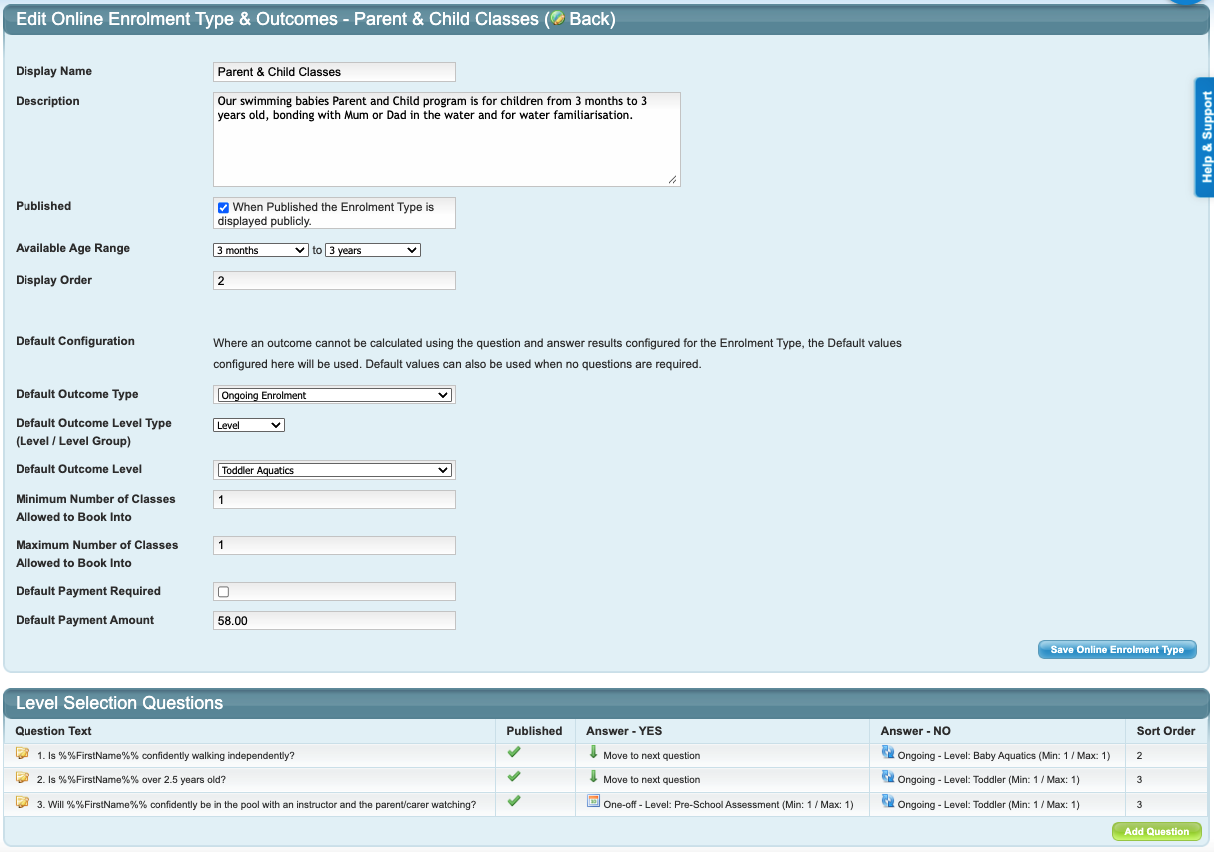
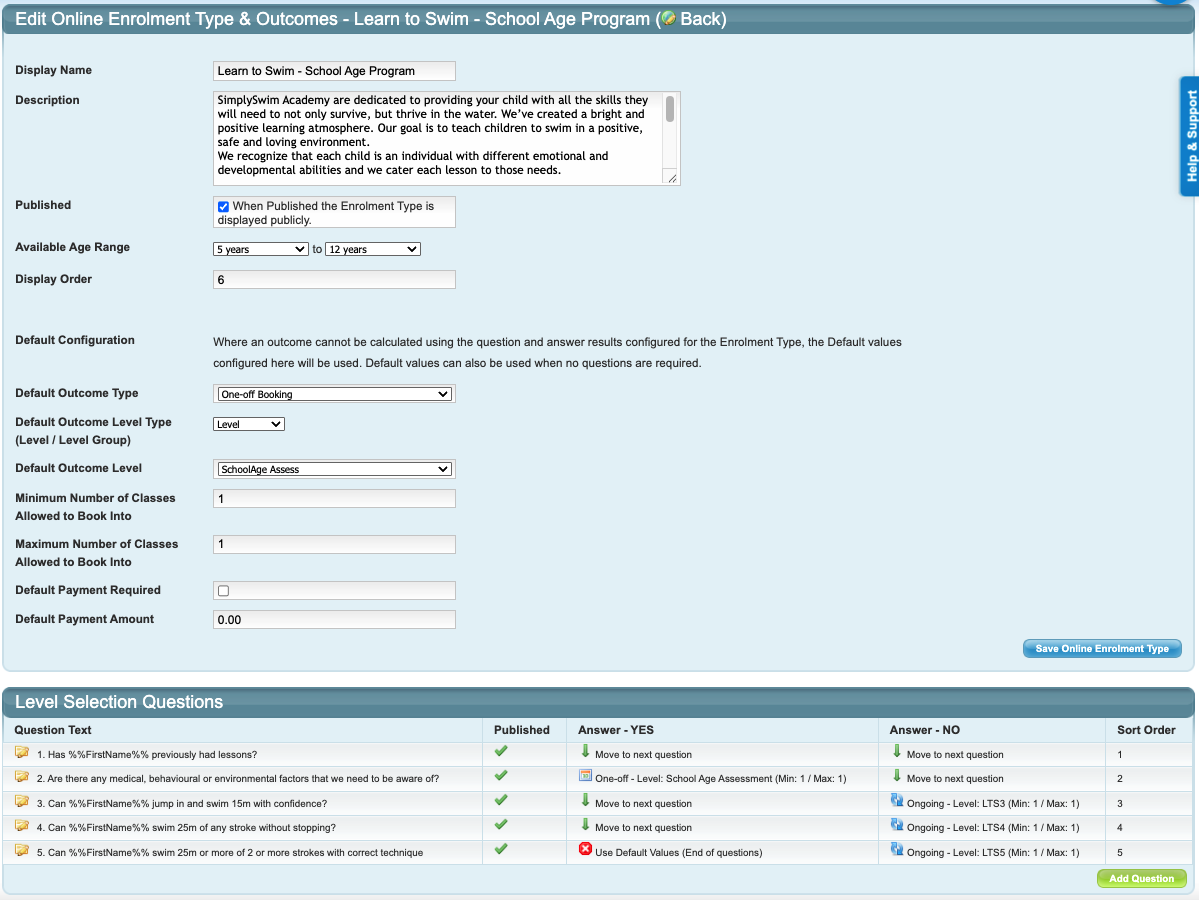
Completed Enrolment Types and Class Match Framework questions examples:
Last updated 4th February 2026
Was this article helpful?
That’s Great!
Thank you for your feedback
Sorry! We couldn't be helpful
Thank you for your feedback
Feedback sent
We appreciate your effort and will try to fix the article