 Complete Elite
Overview
The Passes feature in the SimplyPortal app (customer portal) enables families to purchase and view multi-entry passes offered by your centre. This digital pass system provides a flexible alternative to traditional physical card / tag passes, allowing families to visit the centre multiple times using a pre-purchased digital pass.
Entry passes have been available in SimplySwim for a number of years. This new feature allows families to purchase, top up and manage their Passes online.
Key Features
1. Pass Browsing and Selection
Families can browse all available pass types offered by the centre through an easy to navigate catalogue.
How it works:
- Only Active pass types that are configured for portal sales are displayed
- Pass types are organised by category (e.g. "10 visit pass", "Monthly Unlimited Pass")
- Families can compare different Pass options before making a final selection
- Each Pass displays clear information including:
- Pass name and description
- Number of entries included (or "Unlimited" for unlimited passes)
- Expiry period (e.g. "Valid for 90 days")
- Price
2. Secure Online Pass Purchase
Families can purchase passes directly through the portal using secure online payment processing. You will need to have online payments enabled.
How it works:
- Families select and then review their Pass selection prior to confirming the purchase.
- Payment is securely processed through the centre's configured payment provider.
- The system validates that the payment amount matches the Pass price.
- Upon successful payment:
- A unique pass number is automatically generated
- The pass is immediately activated and available for use
- A receipt is provided with the transaction reference
- An invoice is created in the family's finance section and payment is receipted
- The pass is added to the family's file.
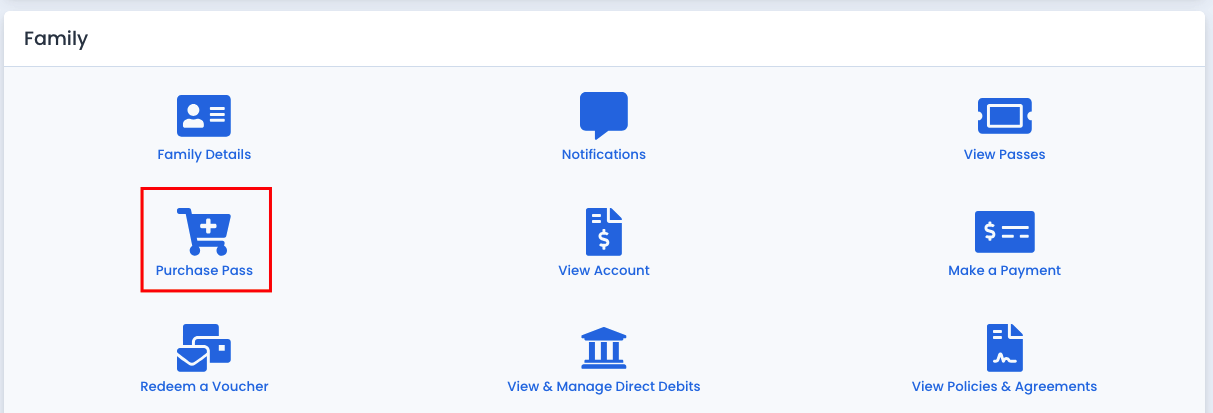
3. Pass Management Dashboard
Families can view all their current and recently expired passes in one centralised location from the Passes Dashboard in the SimplyPortal app (customer portal).
How it works:
- Active passes are prominently displayed at the top of the list
- Recently expired passes (within the last 30 days) are also shown for reference
- Each pass can be clicked to view detailed information including:
- pass type
- remaining entries
- expiration date
- Active / Expired status
- pass number
- Activity Log including usage history, purchase date, etc.
4. Digital Wallet Integration (Apple Wallet)
Families can add their passes to their Apple Wallet for convenient mobile access. Pass updates (like entry usage) are pushed to the wallet automatically.
Setup
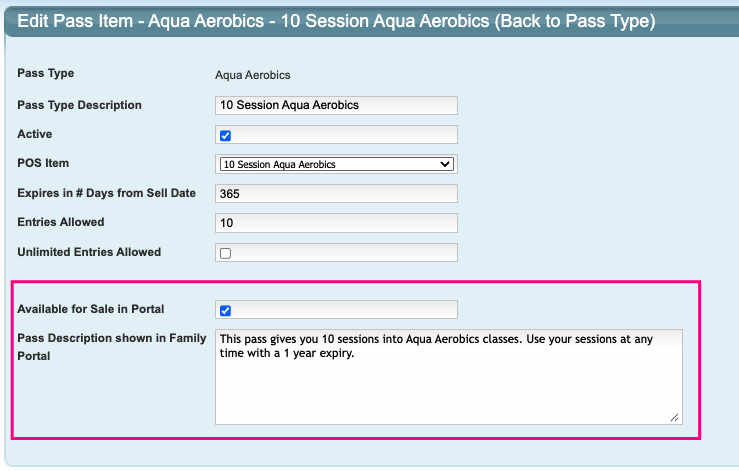
To enable the purchase of Passes through the customer portal, go to Configuration and click on Pass Types.
Click on your Pass category name and then the individual pass type.
Tick the box "Available for Sale in Portal".
Optional: add in a description.
Click "Save Pass Item".
Repeat the process for all passes available for online purchase.
Last updated 4th February 2026
Was this article helpful?
That’s Great!
Thank you for your feedback
Sorry! We couldn't be helpful
Thank you for your feedback
Feedback sent
We appreciate your effort and will try to fix the article