 Elite
EliteFor an overview on Online Enrolment Cancellations and Online Enrolment Cancellation Requests, refer to:
Overview: Online Enrolment Cancellation
Introduction
Online cancellations allow families to end their enrolments themselves within Centre cancellation settings.
Settings
Go to Configuration and click on Class Assessment Levels.
Each class level allowed to utilise cancellations must be configured. This allows you to configure different settings for different class levels
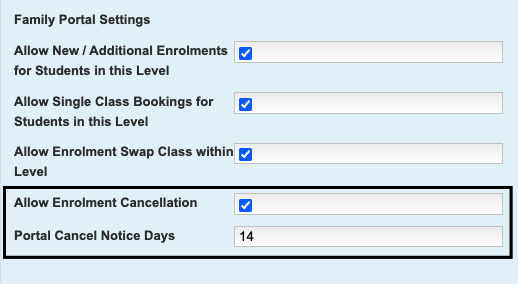
All of the available Online Booking settings are explained below. The three Cancellation options are highlighted below and must be configured to allow cancellations.
Setting | Configuration |
Allow Enrolment Cancellation | Ticked: Allows families to cancel their enrolments. Not ticked: does not allow families to cancel enrolments. |
Portal Cancel Notice Days | Enter a notice period (number of days) in this field. For example a setting of 14 will only show eligible last lesson (enrolment end) dates after this notice period. |
These two settings must be configured in tandem for cancellation actions.
How it works
Cancellations processed through the portal work the same way as an enrolment ended by staff. Any lesson dates that had been charged past the end date of the enrolment are credited* back to the family account and the student's enrolment is ended.
*Credits are not refunds. Credits are adjustments to the family account if there were any lessons past the end date that had already been charged to the family. If any actual refunds are required, these would need to be managed by the centre.
Management
Cancellations processed through the portal are actioned immediately for the last lesson date selected. This gives families clarity.
Portal cancellations do not require any further action from the Centre to end the enrolment.
What it looks like - Staff view
Portal cancellations can be viewed at Administration -> View Portal Enrolment Cancellations. This displays the date the cancellation was actioned, the student, family, enrolled class, reason given and the last lesson date of the enrolment.
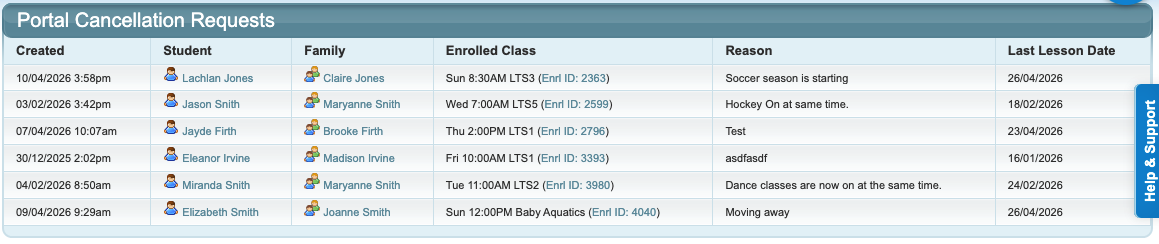
When clicking on the student, the cancelled enrolment is visible from the family and student screen if it is still within the cancellation period.
Family's screen:
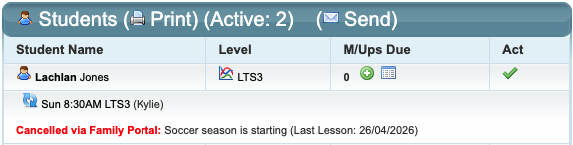
Student's screen:

What it looks like - Family view
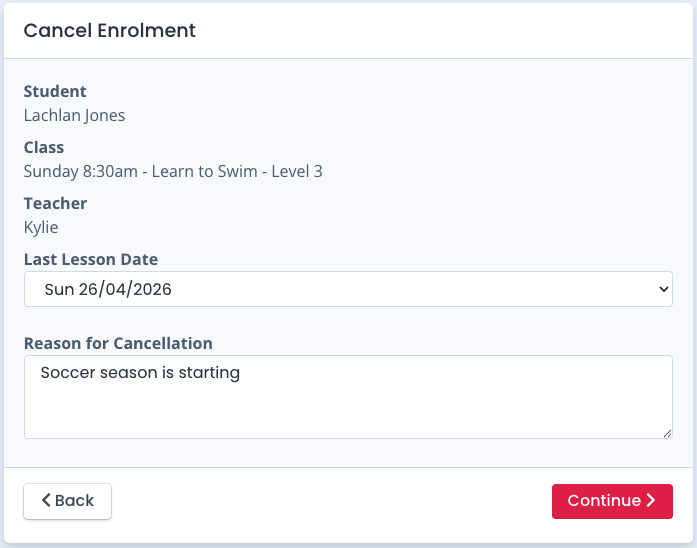
Families navigate to the student they wish to cancel and click on "View & Manage Enrolments" and "Cancel" for the enrolment they wish to end.
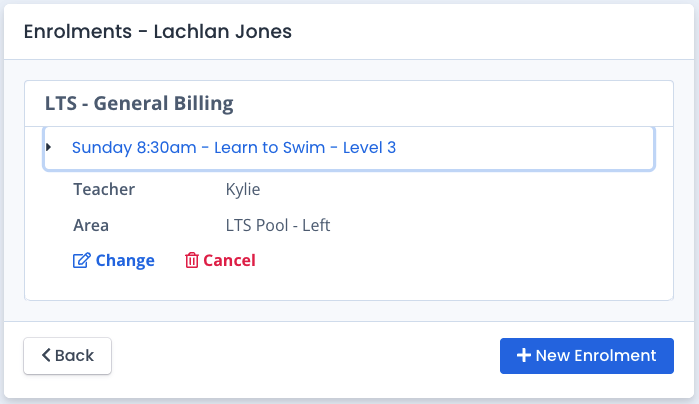
The student and class enrolment to be cancelled is displayed and a Last Lesson Date needs to be selected from the dropdown, defaulting to the first date available for the last lesson. This is set by the centre's cancellation notification period settings. They can also add a Reason for Cancellation.
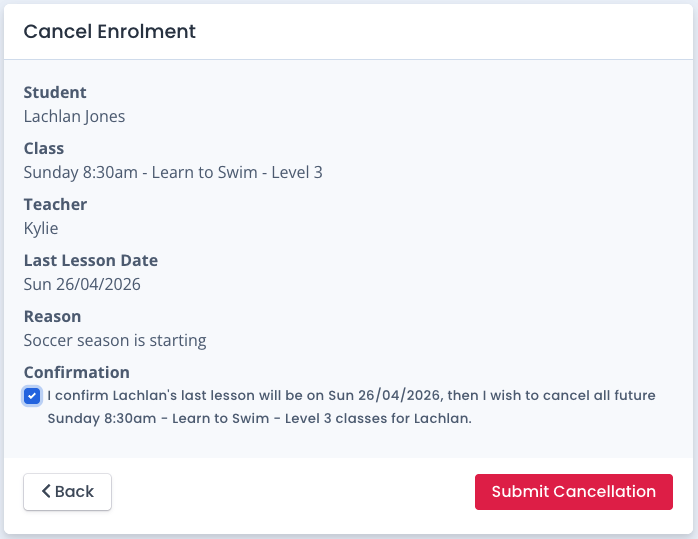
A final confirmation screen is displayed. They must tick the box to confirm and then Submit Cancellation.
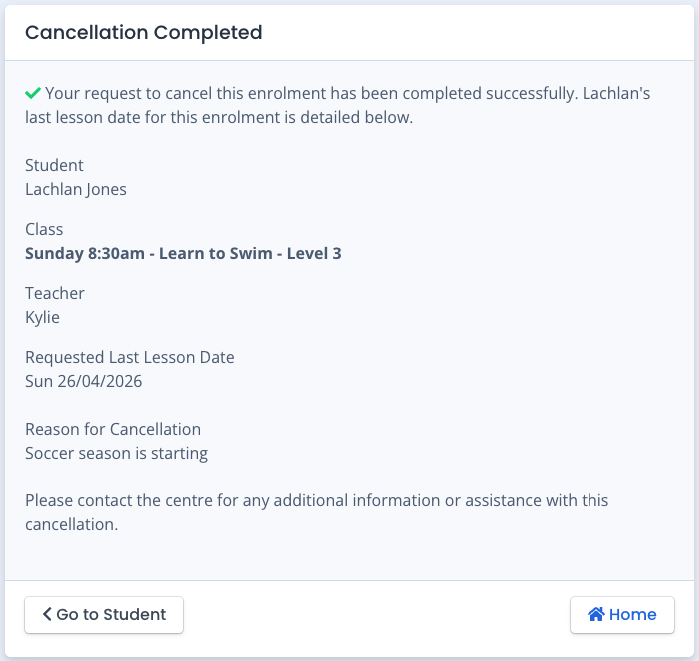
They are then shown the completion of the cancellation and confirmation of their last lesson date.
Last updated: 10 April 2026
Was this article helpful?
That’s Great!
Thank you for your feedback
Sorry! We couldn't be helpful
Thank you for your feedback
Feedback sent
We appreciate your effort and will try to fix the article