Students can be added to the general student Waitlist, or to a Waitlist for a specific class.
Adding a Student to the Waitlist
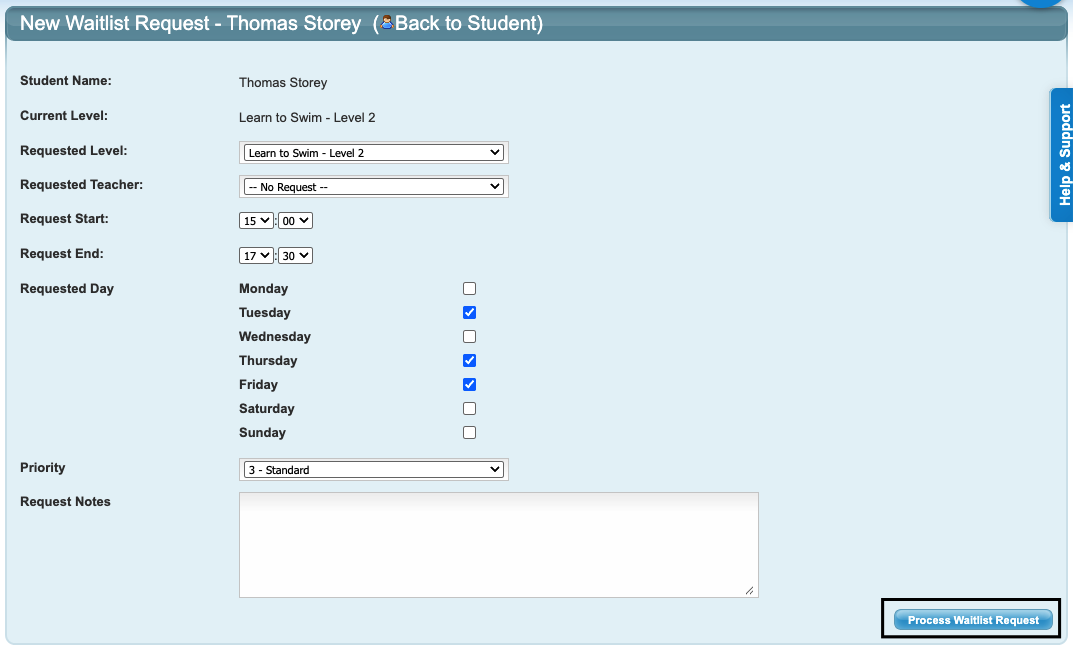
On the Student's screen, click on "Add Waiting List Request".

Complete all relevant fields with the student's availability and click "Process Waitlist Request". If they are available for different time periods on different days, create more than one request. If they are available for the same time period on multiple days, only one request needs to be made, ticking the relevant days.
The request is now listed on the Student's file. The actions from here allow the request to be edited or deleted.

Adding a Student to a Specific Class Waitlist
Click on the class, scroll down and click "Add Student to Class Waiting list".

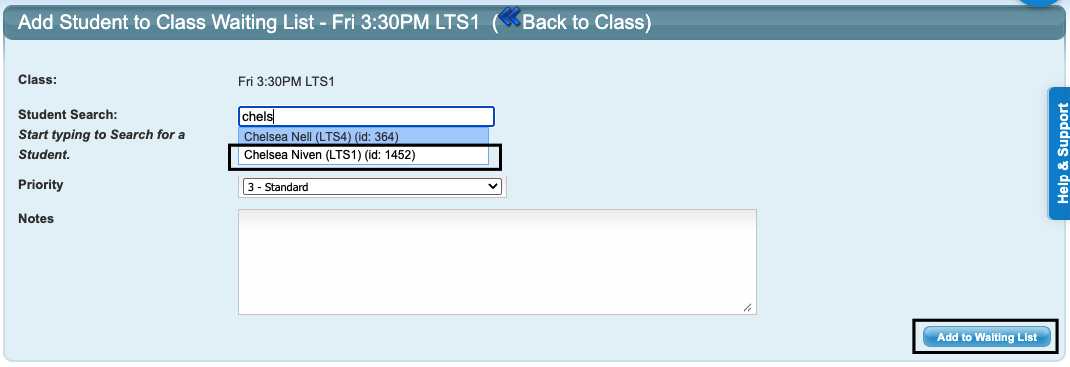
Start typing in the name of the student. When their name appears in the list, hover over it until it turns white and click on the name. They will appear in the box and in green next to the box indicating the addition has been successful. Then click "Add to Waiting List" to save the request.
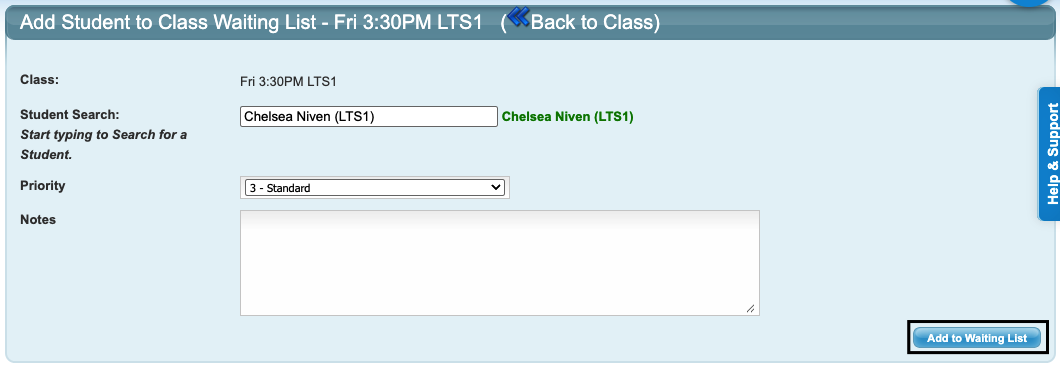
This will populate the request in the class.

Viewing the Waitlist
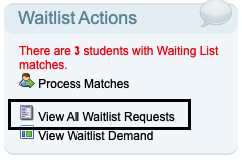
Click "View All Waitlist Requests" in the "Waitlist Actions" box on the left hand side of your screen.
All Student and Class Waitlist Requests are listed here. Specific Class requests are clearly visible.

Processing Matches from the Waitlist
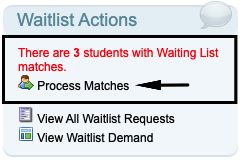
Any matches to Waitlist Requests are notified in red. Click on "Process Matches" to view them.
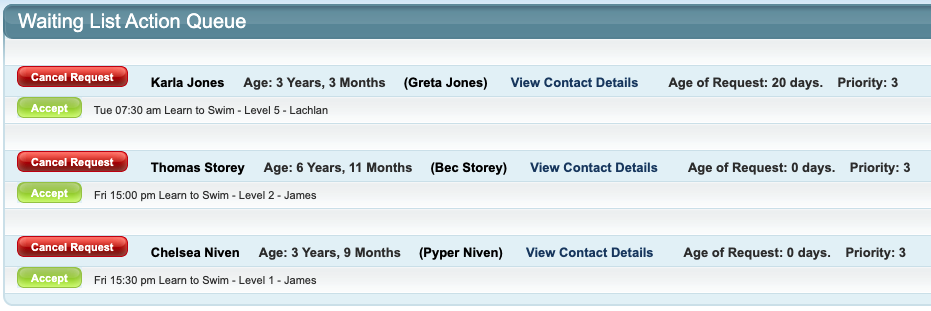
If a match is found for a Specific Class Request, only that class is shown instead of all matching classes for the request. Clicking "Accept" on a match will enrol the student into the match.
Processing Matches from a specific class
Click on "Enrol in this Class" from the Waitlist section on the Class Information Screen.

NOTE:
If a student already has an enrolment in a class that is no longer required following the waitlist acceptance, this will need to be managed and ended if necessary - this is not an automatic action as there can be genuine cases where a student is enrolled in multiple classes. If you have discounted pricing, be aware of this when enrolling into the waitlisted class and select the desired price from your price matrix.
If you cannot see the "Waitlist Actions" box go to Configuration --> System Setup --> Waiting List and tick the box "Enable Waiting List" and "Save Changes".
Last updated 04 May 2026
Was this article helpful?
That’s Great!
Thank you for your feedback
Sorry! We couldn't be helpful
Thank you for your feedback
Feedback sent
We appreciate your effort and will try to fix the article