Overview
How to add a student to the waitlist for a specific class.
To add a student to the Waiting List for any available class, refer to: How To: Add a Student to the Waiting ListHow To Video
Setup Guide
TABLE OF CONTENTS
Before You Start
The Student must already be entered in the system on a family.
Waitlist requests can be added to a student whether they are active (enrolled) or inactive (no enrolment).
Adding a Student to a Waitlist for a Specific Class
1. Click on the specific Class from the Classes or Attendance screen, scroll to the bottom and click "Add Student to Class Waiting List".

2. Start typing the student's name. When it appears in the list, hover over it until it turns white and click on the name.
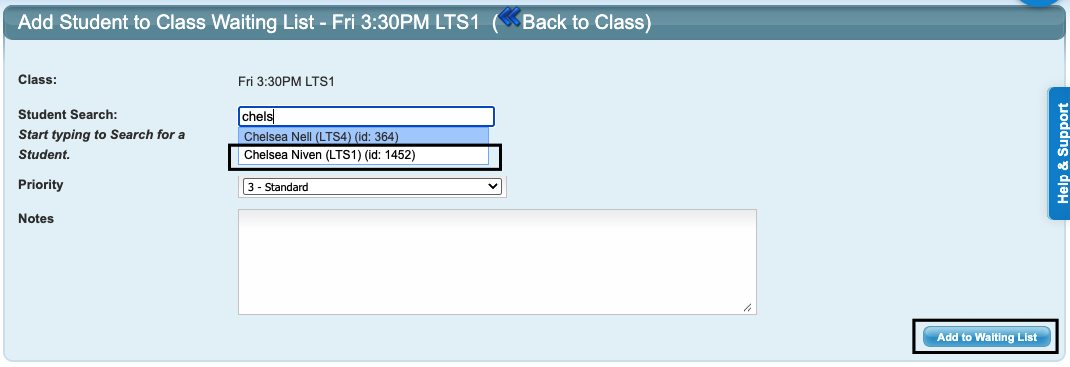
3. The student name will then appear in the box and in green text next to the box, indicating the student name selection has been successful. Notes are optional. Click "Add to Waiting List" to save the request.
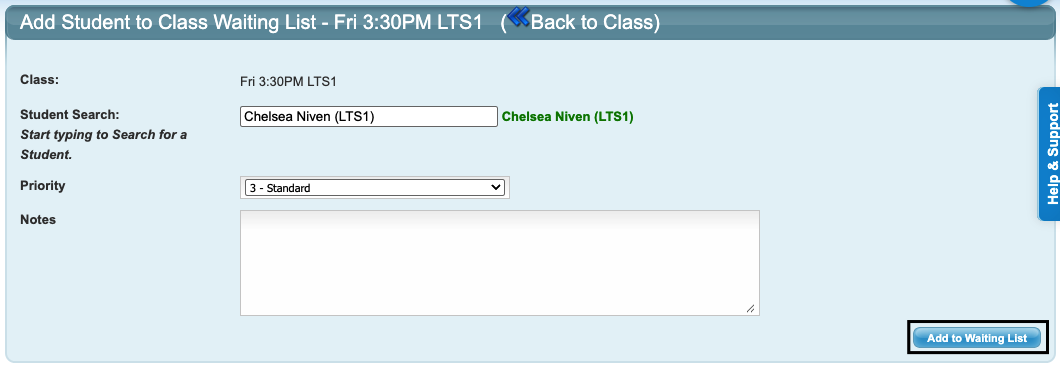
This will populate the request in the class.

How to Edit a Class Waitlist
1. Click on the Class and then click on the Student in the Class' Waitlist.
2. Scroll to the Waitlist Requests section. Click on the yellow edit folder in the Actions column to add any notes to the request, or click on the ❌ to remove the Class Waitlist Request for the student.

Further information
To manage / view Waitlist Requests, refer to: How To: View and Manage the Wait List
To add a Student to the general waitlist, refer to: How To: Add a Student to the Waiting List
Last updated 9 June 2026
Was this article helpful?
That’s Great!
Thank you for your feedback
Sorry! We couldn't be helpful
Thank you for your feedback
Feedback sent
We appreciate your effort and will try to fix the article