Overview
This article explains how to add a Student to the Waiting List.
Matches will be for a place in any available class within the time range and days of week in the Waitlist Request.
To add a student to the Waiting List for a specific class, refer to: How To: Add a Class Wait List RequestHow-To Video
Setup Guide
TABLE OF CONTENTS
Before You Start
The Student must already be entered in the system on a family.
Waitlist requests can be added to a student whether they are active (enrolled) or inactive (no enrolment).
Adding a Student to the Waiting List
1. Go to the Student's screen and click on "Add Waiting List Request".

2. Complete all relevant fields with the student's availability and click "Process Waitlist Request".
As a minimum, select a Level, time frame and at least one day of the week.
"--No Request--" in the Teacher field will look for availability with any teacher.
Tips:
- Create one Waitlist Request if the student has the same time availability on multiple days.
- Create multiple requests if their available times are different on multiple days.
- Time is in 24 hour time.
Example:
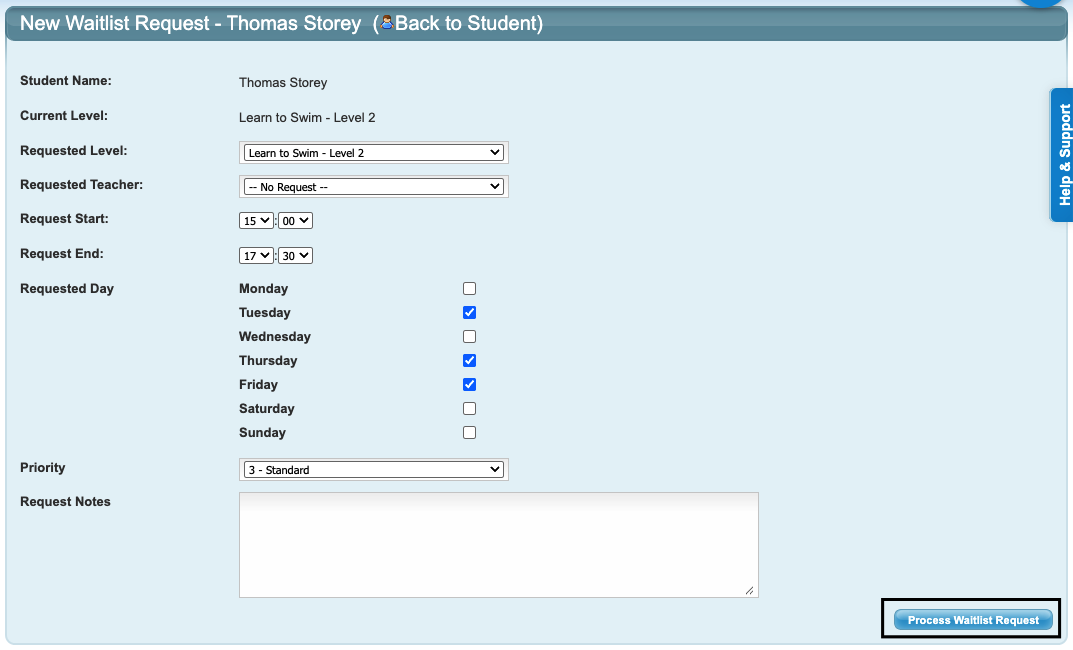
3. Click on "Process Waitlist Request" to save the request. The request is now listed on the Student's file.
Example of single waitlist request:

Example of Waitlist Request for different timings:

How to edit or delete a Student's Waitlist Request
1. Go to the Student's screen and navigate to the "Waitlist Requests" section.
2. The actions column allows you to Edit the request (yellow folder) or delete the request (❌).
Further information
To manage / view Waitlist Requests, refer to: How To: View and Manage the Wait List
To add a Student to the waitlist for a specific class, refer to: How To: Add a Class Wait List Request
Last updated 9 June 2026
Was this article helpful?
That’s Great!
Thank you for your feedback
Sorry! We couldn't be helpful
Thank you for your feedback
Feedback sent
We appreciate your effort and will try to fix the article