Overview
This article explains how to enrol a student into a class.
To enrol a student into multiple grouped classes (e.g. Holiday Program, Squads) refer to this article:
How To: Enrol a Student into Grouped Classes
How-To Video
Setup Guide
TABLE OF CONTENTS
Before You Start
Check that the student has a level set. This will make enrolment easier.
To set a Student's level, go to their Student screen, select a level from the "Set New Level" dropdown box and click "Update Student Information".
Example of no level set Example of level set

When a Student has a Level set, only classes of that Level will display when enrolling. If a Level is not set, ALL Classes in your schedule will display when enrolling.
How to Enrol a Student into a Class
Students can be enrolled from:
- the Family's screen → Add <student name> to Class (only available when no enrolments exist)
- the Student's screen → New Class Enrolment
- directly from the Class.
1. Click on "Add student to Class" (from that Family's screen) or "New Class Enrolment" (from that Student's screen).
2. Only classes with vacancies will be displayed. Change the date at the top to the correct start week and click on the class to enrol the student.
TIP: The date can be changed by clicking on the arrows near the date at the top of the screen. Select the correct start date for the student to ensure correct billing and attendance dates and to check class availability. 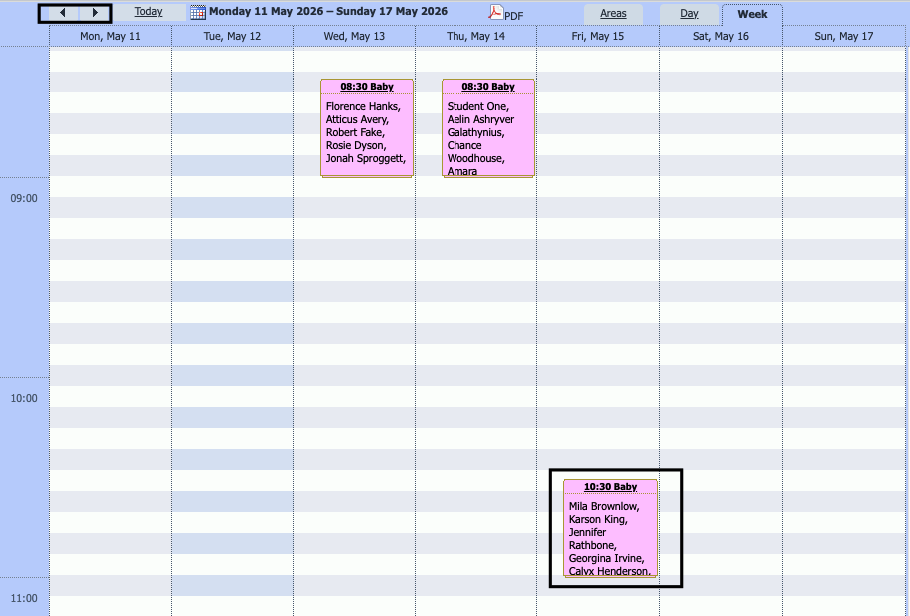
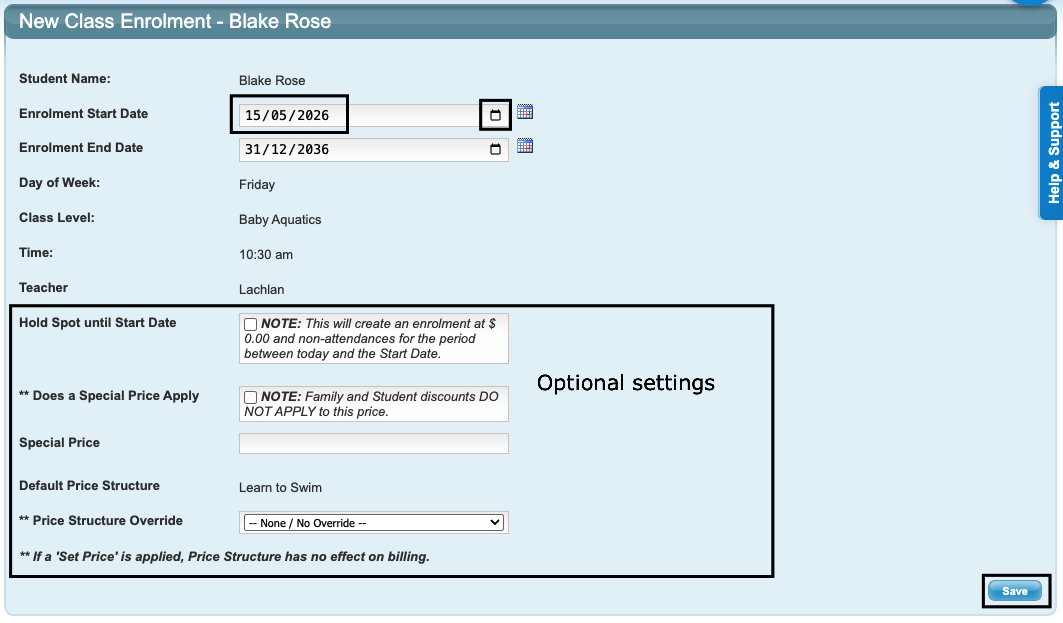
3. Enter / confirm the enrolment details on the next screen and click "Save".
* The Start and End Date of the enrolment are mandatory. These will pre-fill based on the selection in the previous screen.
Field | Response |
Enrolment Start Date * | This is the first date the student will attend. The date selected on the initial class schedule screen is displayed. Use the date picker to select a different date if needed. |
Enrolment End Date * | Leave this as the default for ongoing enrolments (recommended). |
| Optional settings: | |
Hold Spot until Start Date | Do not tick: if the next lesson date is the Student's Start Date. Tick: if the Student's Start Date is not the next lesson date (e.g. there is a week or more gap before they start). |
** Does a Special Price Apply | Do not tick (general setting): if no special price applies. Tick: if a special price applies and complete the next field. |
Special Price (box above must be ticked) | Enter the per class amount without the currency symbol only if a special price applies, e.g. 10.00 The special price box must also be ticked for the special price to take effect. |
** Price Structure Override | Select a Price Level from the dropdown only if a different Price Level applies to this enrolment. |
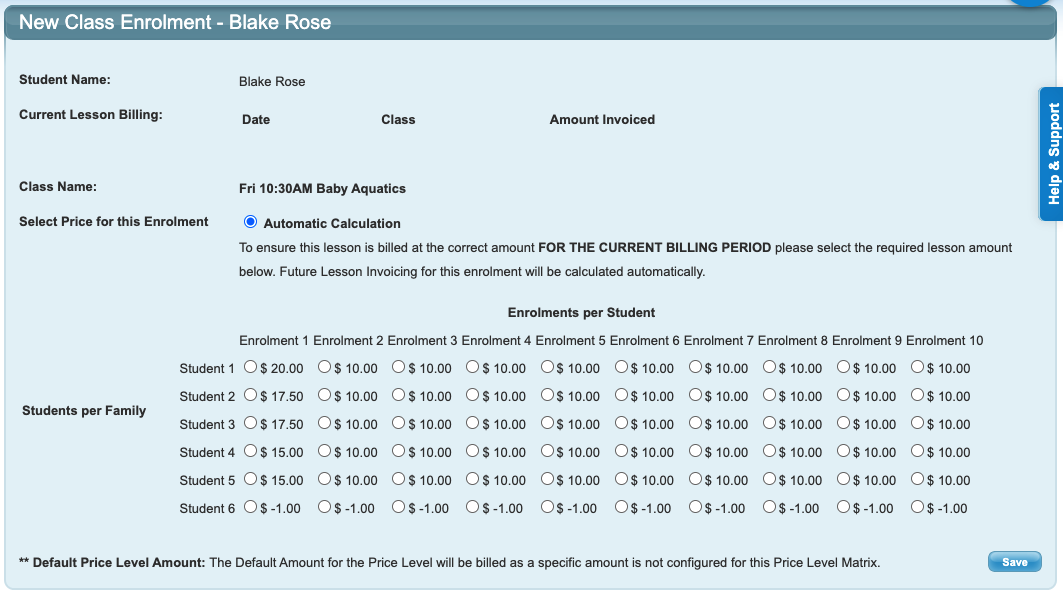
4. The final screen is a confirmation of the enrolment and pricing. Either leave on Automatic Calculation or select the price from the Price Matrix and click "Save".
Selecting a price from the Price Matrix will apply for the remainder of the current billing cycle only. Each time invoicing is generated, the system checks the student's order in the family as well as the number of enrolments and charges according to the price matrix. If a specific price on an enrolment needs to be charged that is different to the class price settings (e.g. Student 1 to always be charged 10.00) then apply a special price to the enrolment on the previous screen.
The Student is now enrolled in the selected class. If invoicing has been generated for the dates of the enrolment, the Finance will show a charge for the enrolment and the Student's screen will show attendances.
Family screen:

Student screen:
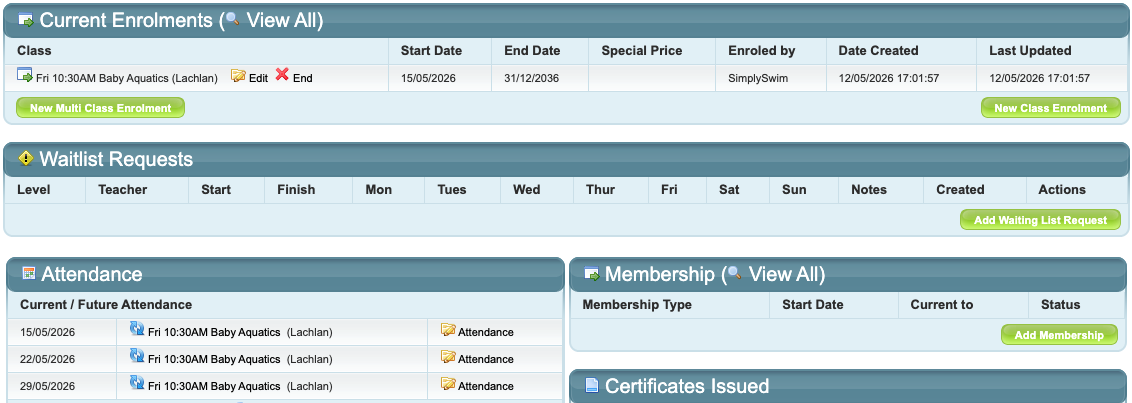
If a Student needs to be enrolled into more than one class, repeat the above steps.Enrolment directly from a Class
1. Click on the desired Class from the Classes or Attendance screen.
2. Scroll to the bottom to the "Add Student to Class" section. Start typing in the Student's name. Hover over the student's name and only click on them when they have turned white.
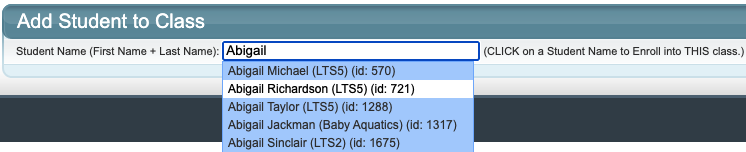
3. Repeat steps 3 - 4 above to complete the enrolment.
Last updated 30 June 2026
Was this article helpful?
That’s Great!
Thank you for your feedback
Sorry! We couldn't be helpful
Thank you for your feedback
Feedback sent
We appreciate your effort and will try to fix the article