Overview
Families can update their student's class enrolments through the SimplyPortal app (Customer Portal). This powerful self-service feature allows families to change their student's ongoing enrolments to a different day or time with just a few clicks - no phone calls, no waiting, no delays and no administrative overhead.
This powerful feature has some key benefits:
- Instant Changes: families are able to view and change their enrolled class times immediately without contacting the centre
- Real-Time Availability: only classes with actual availability matching the student's level will be displayed
- Seamless Transition: the system automatically manages the old enrolment end date and new enrolment start date based on the start date chosen by the family
- Automatic Billing: credits and billing adjustments are processed automatically via background tasks
- Transparency: Clear confirmation screens show exactly what's changing before finalising any enrolment changes.
Technical Overview - Centre Settings
To allow families to action enrolment changes through the portal, these settings need to be configured on each Class Assessment Level from Configuration. This function allows you to exclude levels from online enrolment changes.
For each level allowing online enrolment changes, click on the level name and locate the 'Family Portal Settings' section.
All Online Booking settings are explained below. If you only want to allow the ability to change an enrolment, tick the "Allow Enrolment Swap Class within Level" setting.
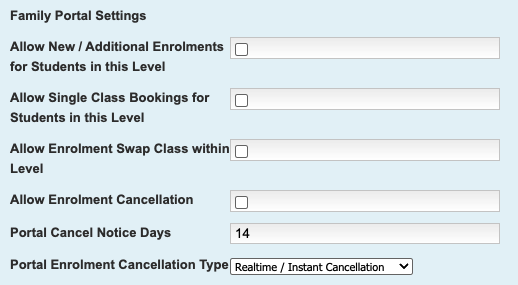
Setting | Configuration |
Allow New / Additional Enrolments for Students in this Level | Ticked: enables new and / or additional online enrolments in the portal. Not ticked: does not allow new and / or additional enrolments. |
Allow Single Class Bookings for Students in this Level | Ticked: allows single (one-off) class bookings through the portal. Not ticked: does not allow one-off bookings. |
Allow Enrolment Swap Class within Level | Ticked: enables students to change their ongoing enrolments (swap class). Not ticked: does not allow any online enrolment (class) changes. |
Allow Enrolment Cancellation* | Ticked: Allows families to cancel their enrolments. Not ticked: does not allow families to cancel enrolments. |
Portal Cancel Notice Days* | Enter a notice period (number of days) in this field. For example a setting of 14 will only show eligible cancellation dates after this notice period. |
Portal Enrolment Cancellation Type* | Select one of two options: Realtime / Instant Cancellation: cancels the enrolment immediately based on 'Cancel Notice Days' configured with instant confirmation and billing adjustments. On-request / Manually processed: submits a cancellation request to the centre with a preferred last lesson date. Centre reviews and processes the request manually. Enrolment remains in place until processed by the Centre. |
* these three settings must be configured in tandem for cancellation actions.
FAQs
Q: What happens to a family's billing / account when enrolment changes are made?
A: The system automatically calculates any credits for remaining billed classes in the old (ending) enrolment, and initiates billing for the new enrolment within current billed dates. Background tasks handle all financial adjustments seamlessly.
Q: Can families change their enrolment back to their original class?
A: Once a class change is confirmed, it is permanent. Warnings are displayed prior to any changes alerting families to the fact that returning to their original class may not be possible if that spot is filled.
Q: Can the enrolment change be actioned for trial or one-off classes?
A: No, the enrolment change is intended for ongoing enrolments only. One-off changes can be handled by make-up lessons or contacting the centre for a change of booking.
Q: When does the change take effect?
A: Families select their start date in the new class from limited options. The system calculates the optimal transition point and the last date in the old class is determined based on this selection and future scheduled attendances.
Q: What information will families see prior to confirming an enrolment change?
They will see a detailed comparison showing:
- Old class: day, time, teacher and last class date
- New class: day, time, teacher, first class date
- Student name and current level
- A confirmation checkbox acknowledging the change is permanent
Q: Can I block Classes or Levels from online enrolment changes?
A: Yes, this is all configurable.
Q: How do classes appear for online enrolment changes?
A: Only classes matching the student's level with available enrolment spaces will be available for selection.
Q: What happens if there is a gap between the start date of the enrolment and the date it was changed?
A: The system creates a "hold spot" enrolment to maintain continuity and to ensure no overbooking occurs.
Q: How does a family perform an enrolment change?
A: After navigating to the student who requires the change, they would click on "View & Manage Class Enrolments", click on the enrolment and then "Change". More details on the process from the family's perspective can be located here:
Online Change of Enrolment: Family view
Last updated 4th February 2026
Was this article helpful?
That’s Great!
Thank you for your feedback
Sorry! We couldn't be helpful
Thank you for your feedback
Feedback sent
We appreciate your effort and will try to fix the article