Overview
Student attendance statistics for the past 90 days can be made visible in the customer portal. The purpose is to assist families to visualise and further understand the impact of attendance on progression.
Setup Guide
TABLE OF CONTENTS
Before You Start
A User with access to Configuration is required to action these settings.
How to Enable or Disable the Student Attendance Statistics Portal Display
1. Go to Configuration → Class Assessment Levels.
2. Click on the name of the Class Level.
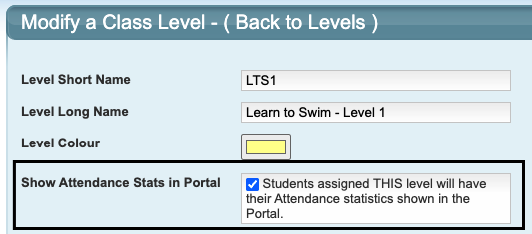
3a. To ENABLE the attendance statistics display in the portal, tick the box "Show Attendance Stats in Portal":
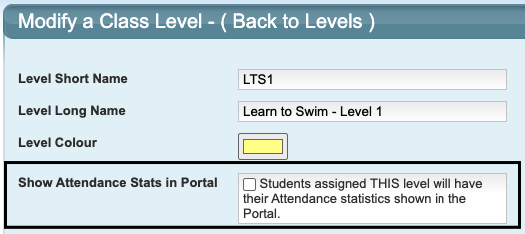
3b. To DISABLE the attendance statistics display in the portal, UNTICK the box "Show Attendance Stats in Portal":
4. Click "Modify Level" to save.
Repeat this for each Class Assessment Level to enable / disable the portal attendance statistics.Family POV ~v~ Staff POV
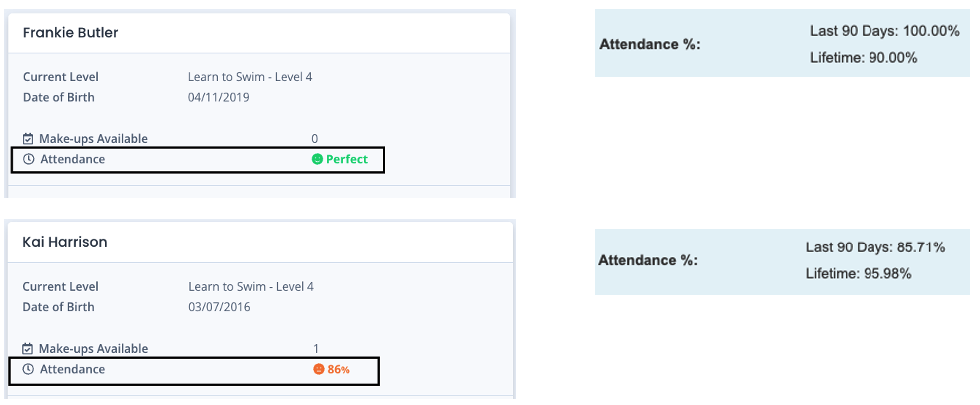
When clicking on a Student in the portal, the family can view their student's Attendance Statistics with a smiley face in simple "traffic light" style (Green = perfect (above 90%), Orange = moderate (70 - 89%), Red = attendance low).
Staff can see the "Last 90 Days" and "Lifetime" attendance Statistics on the Student's screen (under their level and skills).
Last updated 9 June 2026
Was this article helpful?
That’s Great!
Thank you for your feedback
Sorry! We couldn't be helpful
Thank you for your feedback
Feedback sent
We appreciate your effort and will try to fix the article