Overview
SimplySwim's Inventory and Stock Management system manages saleable and non-saleable items for inventory control, stock on-hand calculations, stock movement and cost pricing.
This article details Step 5 in the process - linking Inventory Items to POS Items.
This vital step means that each time a POS Item is sold, the stock count for that Inventory Item is updated.
How-To Video
Setup Guide
TABLE OF CONTENTS
Before You Start
This article assumes Suppliers, Stock Categories, Inventory and POS Items have been created.
Refer to these articles for these prerequisite steps:
Overview: Inventory and Stock Management
How To: Configure or Edit Suppliers (Inventory Step 1)
How To: Configure or Edit Stock Categories (Inventory Step 2)
How To: Configure Inventory Items (Inventory Step 3)
How To: Add POS Items for Inventory (Inventory Step 4)
How to Link a POS Item and Inventory Item
1. Go to Configuration → POS Items and click on the POS Item.
2. Start typing in the name of the Inventory Item in the "Linked Inventory Items" section. Any matching Inventory Items will appear for selection. Hover over the correct item until it is white and click on it.
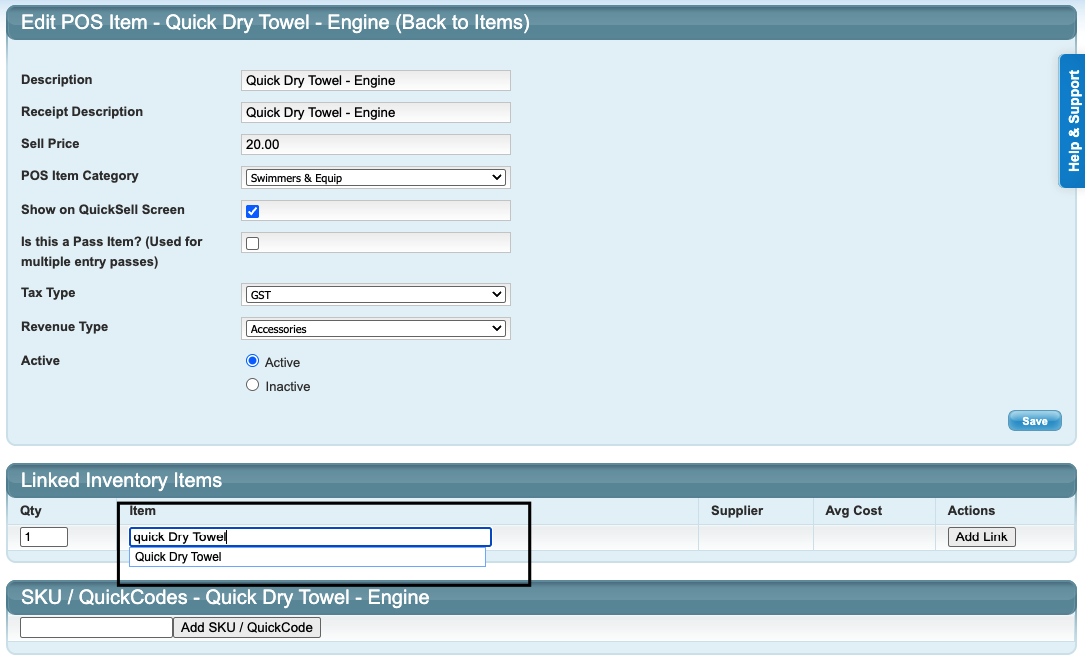
3. Leave the Qty (quantity) as 1 (this means 1 item will be removed from inventory each time this POS Item is sold) and click "Add Link".
The successful linkage is indicated by the green tick ✅ and the hyperlink to the Inventory Item.

Generally only one Inventory Item is linked to a POS Item. Additional items can be linked, for example if you sell/give away a "Welcome pack" with a swim cap, towel and goggles, the POS Item would be "Welcome Pack" and each inventory item linked to the one POS Item.
How to Delete a Linked Inventory Item from a POS Item
1. Go to Configuration → POS Items and click on the POS Item.
2. Click on the delete icon ⛔️ in the Actions column next to the linked Inventory Item and click "OK".
⚡️ Tip: If you are unsure which POS Item an Inventory Item is linked to, go to Configuration → Inventory Items and click on the Inventory Item. The linked POS Item will be displayed. Click on the POS Item to open it.
Frequently Asked Questions
An Inventory Item has been updated. Does it need to be removed and re-linked to the POS Item?
No, any changes will automatically update.
Why can't I see the average cost for a linked item?
This indicates a Supplier Invoice has not been processed. Follow Step 6 listed below.
Next steps article links
The final step in configuring Inventory is to Process a Supplier Invoice. This final step needs to be run each time new stock is purchased to update stock counts. Refer to:
How To: Process a Supplier Invoice (Inventory Step 6)
Last updated 18 August 2026
Was this article helpful?
That’s Great!
Thank you for your feedback
Sorry! We couldn't be helpful
Thank you for your feedback
Feedback sent
We appreciate your effort and will try to fix the article