Overview
SimplySwim's Inventory and Stock Management system manages saleable and non-saleable items for inventory control, stock on-hand calculations, stock movement and cost pricing.
This article details the final Step 6 in the process - Processing a Supplier Invoice.
This vital step loads stock on hand numbers and item costings.
This step should also be followed each time stock is purchased.
Processing a Supplier Invoice does not make a payment to a supplier, it simply records item costs and purchase numbers for inventory stock counts.
Setup Guide
TABLE OF CONTENTS
Before You Start
This article assumes Suppliers and Inventory Items as a minimum have been configured.
Refer to these articles for these prerequisites:
Overview: Inventory and Stock Management
How To: Configure or Edit Suppliers (Inventory Step 1)
How To: Configure Inventory Items (Inventory Step 3).
Initial Load - Process a Supplier Invoice
The initial load is to enter your costings and your stock on hand counts.
1. Go to Administration → Process Supplier Invoice.
2. Enter the date (defaults to today). For the initial setup, leave as today's date.
3. Select the Supplier from the dropdown.
4. Record the invoice number or a reference. For the initial load, this could be "Initial load", "Inventory setup" etc.
5. Click "Create Invoice".
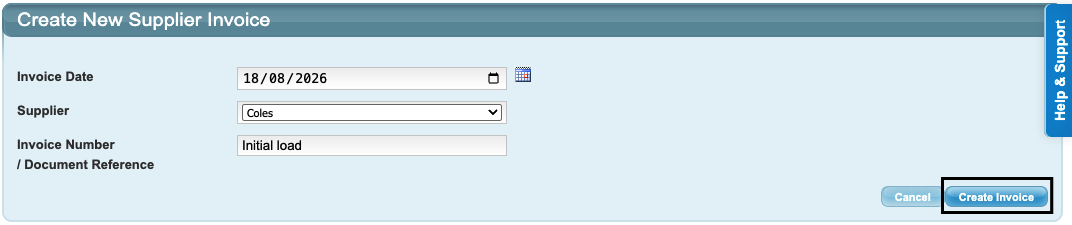
6. Start typing in the name of the first Inventory Item from this Supplier. Hover over the item until it turns white and then click on it.
7. Enter the amount on hand as the Quantity.
8. Enter the cost per item excluding tax.
9. Click "Save Line".
10. Additional Inventory Items or Non-Inventory Items from the same Supplier can be added if needed by entering the next item on the next line and saving. Repeat for as many items as needed.
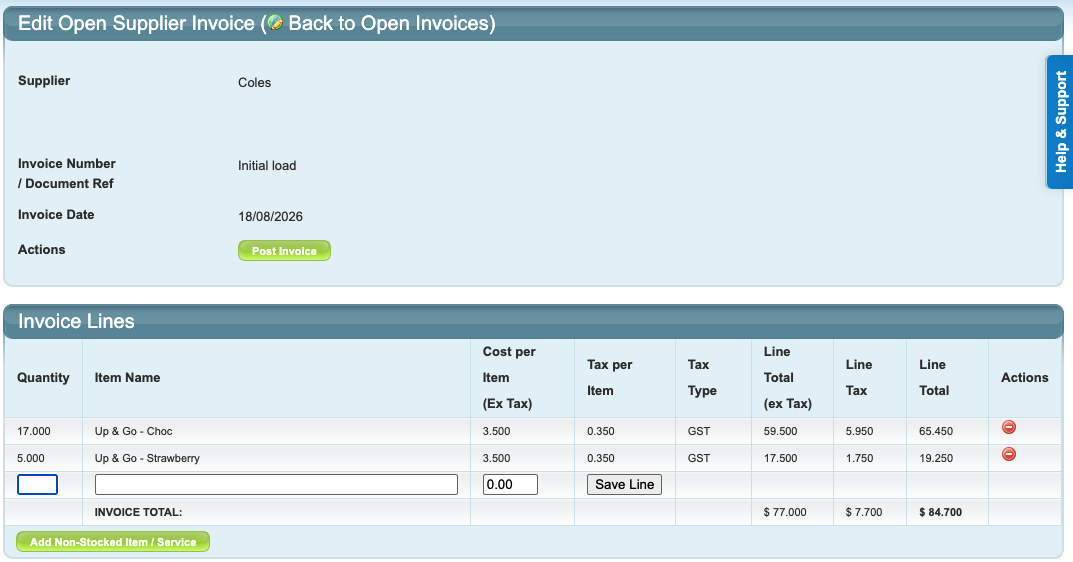
11. When all items have been added, click "Post Invoice" in the top section and click "OK".
The Inventory Items will now display costings and stock on hand.
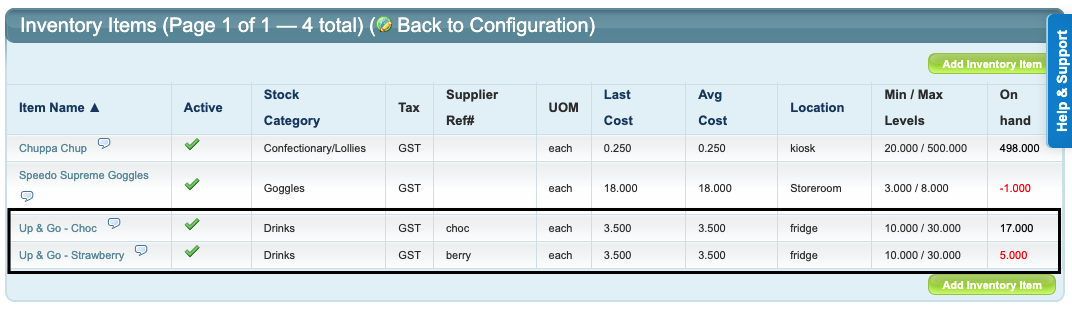
Ongoing - Process a Supplier Invoice
Processing a Supplier Invoice should be actioned each time more Inventory and Non-Inventory Items are purchased.
Repeat the steps as noted above. The Quantity this time would be the number purchased.
Last updated 18 August 2026
Was this article helpful?
That’s Great!
Thank you for your feedback
Sorry! We couldn't be helpful
Thank you for your feedback
Feedback sent
We appreciate your effort and will try to fix the article