Overview
SimplySwim's Inventory and Stock Management system manages saleable and non-saleable items for inventory control, stock on-hand calculations, stock movement and cost pricing.
This article details Step 4 in the process - configuring POS Items.
If POS Items have already been created for Inventory Items, skip ahead to Step 5 - Linking POS and Inventory Items. Refer to: How To: Link POS & Inventory Items (Inventory Step 5).
How-To Video
Setup Guide
TABLE OF CONTENTS
Before You Start
This article assumes Suppliers, Stock Categories and Inventory Items have been created.
Refer to these articles for these prerequisite steps:
Overview: Inventory and Stock Management
How To: Configure or Edit Suppliers (Inventory Step 1)
How To: Configure or Edit Stock Categories (Inventory Step 2)
How To: Configure Inventory Items (Inventory Step 3)
How to Create a POS Item
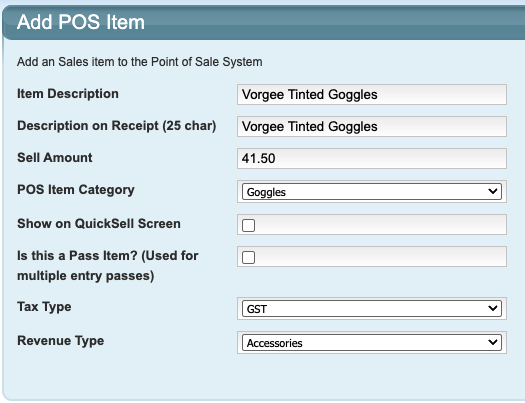
1. Go to Configuration → POS Items and click on "Add POS Item".
2. Complete the fields and click "Save".
Field | Response |
Item Description | Name of the item. |
Description on Receipt (25 char) | Name of the item - can be the same as above. Limited to 25 characters in length. |
Sell amount | Item cost without a currency symbol. E.g. 10.50 |
POS Item Category | Select the category from the dropdown. |
Show on QuickSell Screen | Ticked: The item displays on the main POS screen AND within the POS Item Category. This is intended to be used for high sell items so you can click on it on the main screen rather than having to click into the category first. Not ticked: Item only displays within the POS Item Category. |
Is this a Pass Item? (Used for multiple entry passes) | Tick: If the POS Item is a Pass, this must be ticked. Passes are not sold from POS. Do not tick if the item is not a Pass. |
Tax Type | Select the tax type for the item. |
Revenue Type | Select the revenue type for the item. |
Example
Next steps article links
The next step is to link the Inventory Items to the POS Items. Refer to:
How To: Link POS & Inventory Items (Inventory Step 5)
Last updated 18 August 2026
Was this article helpful?
That’s Great!
Thank you for your feedback
Sorry! We couldn't be helpful
Thank you for your feedback
Feedback sent
We appreciate your effort and will try to fix the article