Overview
This article guides you through how to end or remove a Student's Enrolment.
How-To Video
Setup Guide
TABLE OF CONTENTS
Before You Start
You will need to know the last lesson date for the enrolment.
Rule of thumb is to set the End Date to the date immediately after the last lesson in that enrolment.
If the enrolment needs to be eliminated altogether, set the End Date to be before the Start Date.
IMPORTANT: Check the student's future dated attendances for the enrolment (Attendances section of their Student screen). If any have been non-attended, these will not be changed or removed when ending the enrolment.How to End a Student's Enrolment
1. Go to that Student and click on "End" next to the enrolment.

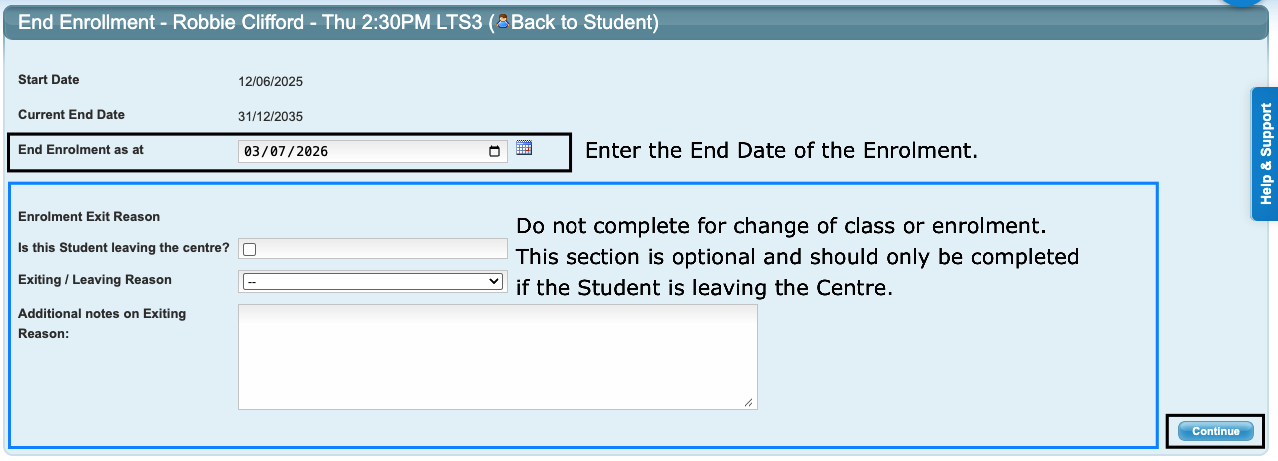
2. Complete the fields and click "Continue". The End Date for the enrolment is mandatory.
The remaining fields are optional and intended to only be completed if the student is leaving the centre and exit reasons are being tracked.
*mandatory setting
Setting / Field Name | Response / Comment |
End Enrolment as at * (mandatory) | Enter the End Date for the enrolment. This defaults to today's date and should be changed to the date immediately after the last lesson date. |
| The below settings are optional: | |
Is this Student leaving the centre? | Do not tick if the student is only changing class. Tick only if the Student is leaving the centre / not enrolling into another class. |
Exiting / Leaving Reason | Select an exit reason from the dropdown. This is optional for reporting purposes if you are tracking Exit reasons. Reasons are created on Configuration. |
Additional notes on Exiting reason | Add additional comments if required. |
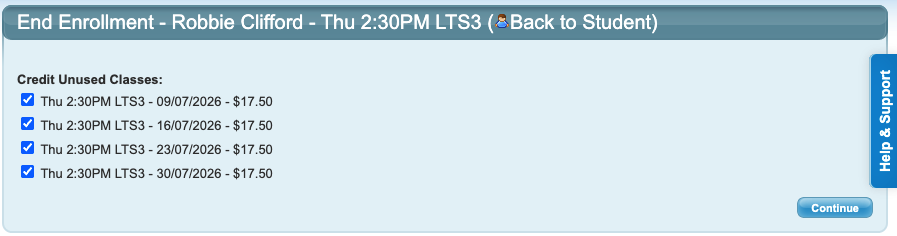
3. IMPORTANT: leave the boxes ticked for the remaining attendances so they are removed and credited back to the family's account (this removes the charges from the family's account, it does not physically refund them). Click "Continue".
If the boxes are unticked, the enrolment will still be ended but the attendances and the charges will remain.
Note: This screen will be blank if invoicing has not been generated for dates past the Enrolment End Date. You still need to click "Continue" to action the ending of the enrolment.
The Student's enrolment is now ended.
Removing an incorrect enrolment
There may be occasions where an enrolment needs to be removed e.g. because a student has been enrolled into an incorrect class / for an incorrect price / for a change of mind.
Removing an incorrect enrolment is the same process as above, however the End Date would be entered as a date BEFORE the Start Date.
Example 1: The enrolment has a start date of 23/07/2026. Today is that date or later. Enter the end date as 22/07/2026.
Example 2: Today is 27/07/2026. The enrolment is future dated and does not start until 03/08/2026. To remove the enrolment immediately, enter the end date for "yesterday", in this case 26/07/2026.
Next steps and further article links
View the family's finance for the credit invoice (if applicable). This will be dated for the first lesson that was credited back. If the boxes were not left ticked to credit back and remove the future attendances, refer to:
How To: Rectify remnant Attendances from an ended Enrolment
To enrol a student into a class, refer to: How To: Enrol a Student into a Class
To change a student's enrolment, refer to: How To: Change a Student's Class Enrolment
Last updated 28 July 2026
Was this article helpful?
That’s Great!
Thank you for your feedback
Sorry! We couldn't be helpful
Thank you for your feedback
Feedback sent
We appreciate your effort and will try to fix the article