Overview
This guide describes how to schedule a Communication Campaign to send at a later date or time.
Setup Guide
TABLE OF CONTENTS
Before You Start
This guide assumes you have already created your Communication Campaign.
For further information on how to set up a Communication Campaign refer to:
How To: Create or Edit a Message Template
How To: Create and Send a Communication Campaign
How to SCHEDULE a Communication Campaign
1. Go to Administration → Communication Campaigns.
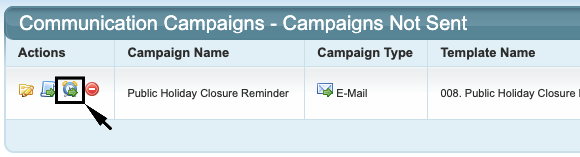
2. Click on the clock symbol with the arrow in the "Actions" column next to the campaign.
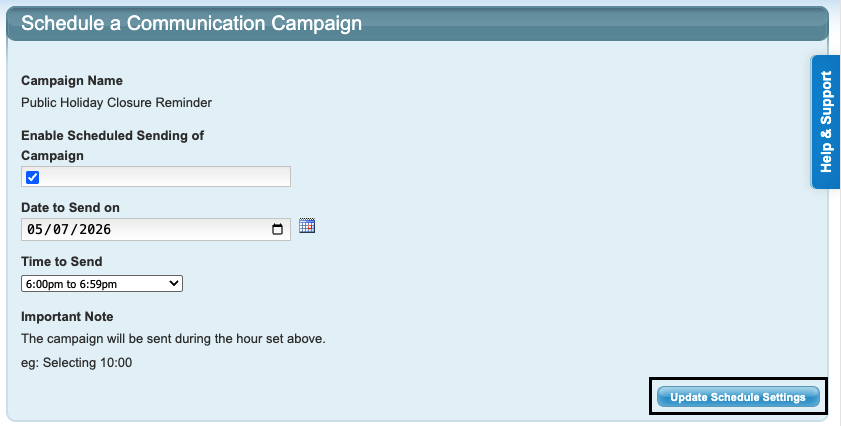
3. Tick the box and select the date and time for the campaign to be sent. Click "Update Schedule Settings".
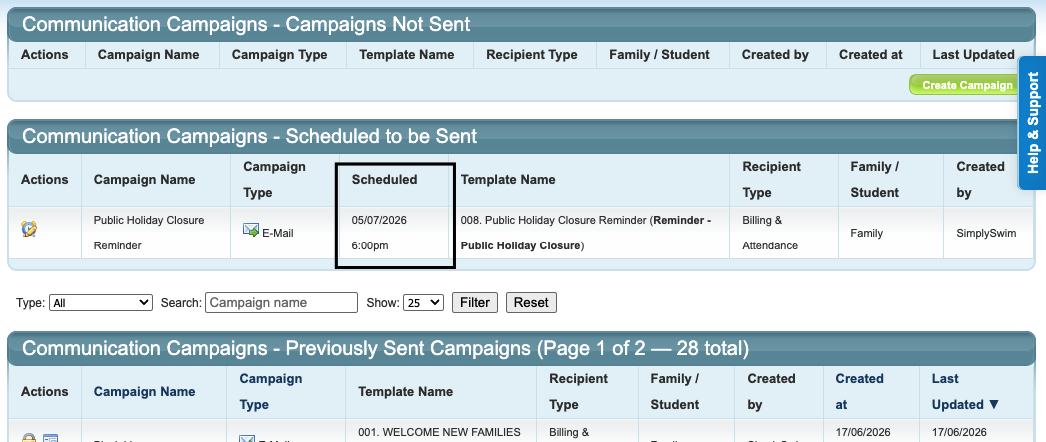
Once scheduled, the campaign will move to the "Communication Campaigns - Scheduled to be Sent" section of your Communication Campaigns screen. It will automatically send at the date and time scheduled.
How to EDIT a Scheduled Communication Campaign
NOTE: If only the message template content needs to be updated, go to Administration → Edit Message Templates and adjust the template. No change needs to be made to the campaign if only the template needs updating.
1. Go to Administration → Communication Campaigns.
2. Click on the clock symbol in the "Actions" column next to the scheduled campaign.

To edit the Send Date and / or Send Time:
3. Adjust these and click "Update Schedule Settings" to save the change. No further actions needed.
OR
To edit the campaign conditions:
3. UNTICK the box to "Enable Scheduled Sending of Campaign" and click "Update Schedule Settings".
4. Click on the yellow edit folder next to the campaign. Make adjustments to the campaign as required and save.
5. The steps to schedule the campaign will need to be followed to reschedule the campaign.
Further Information
To troubleshoot campaigns, refer to: Troubleshooting: Communication Campaigns
Last updated 23 June 2026
Was this article helpful?
That’s Great!
Thank you for your feedback
Sorry! We couldn't be helpful
Thank you for your feedback
Feedback sent
We appreciate your effort and will try to fix the article