Overview
This article explains how to create or edit a message template to use in an individual or bulk communication.
Message templates can be saved and used for regular communications - e.g. a Welcome message to new families letting them know how to download the SimplyPortal customer app and details on their lessons.
How To Video
Setup Guide
TABLE OF CONTENTS
Before You Start
Think about the best format for the type of message you are wanting to send:
- SMS is best suited for quick, short or urgent communications. Refer families to their email if there is an important message you don't want them to miss.
- Email is best suited for larger messages or further information.
- Push Notifications rely on families having downloaded the SimplyPortal app.
Your site comes loaded with some commonly used Custom Message Templates (e.g. a Welcome email). We recommend that you look through these and edit them to be on brand for your centre.
Message Templates are located at Administration → Edit Message TemplatesHow to CREATE a Message Template
1. Click on "Add Message Template".
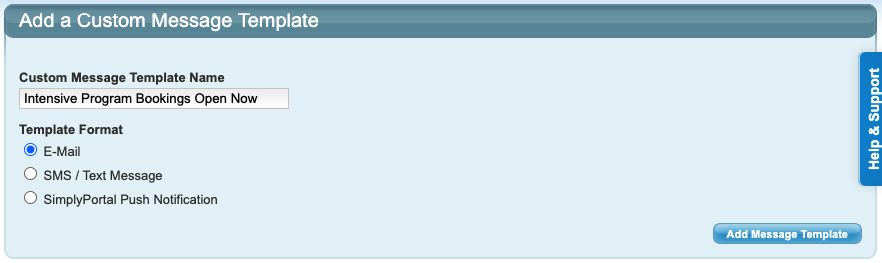
2. Name the template, select the template format and click "Add Message Template".
Note: The name is only visible by staff. A format must be selected or the template will not be able to be sent.
3. Add the message content to the template and click "Save Message Template".
Email Message Templates must include a subject.
SMS Message Templates must not include any emojis. Message templates with emojis will not send.
How to EDIT a Message Template
Custom Message Templates
1. Click on the yellow edit folder for that message template.
2. Make changes and save.
System Notification Templates
1. Click on the edit action for the available message type.
2. Make changes and save.
Further Information - Message Template Formats
Message templates can be created as an:
- SMS
- Email or
- Push Notification (SimplyPortal App).
Custom Message Templates can be used for bulk or individual communications. They will remain in your list of templates to be reused.
System Notification Templates are linked to a system function - e.g. Statement emails, Make-up Reminders, Teacher Replacement Notifications, Payment Reminders. These templates can be edited but cannot be created or deleted. System templates can only be sent via the specific system function, they cannot be sent individually or via communication campaigns.
Further Information - Common Merge Fields
Any wording within %% will pre-fill that field's content. Some merge fields will only populate when used in a System Notification Template with a specific system function.
Commonly used fields that can be included in any message template and will populate in both custom and system message templates are listed below:
Merge field to include in message template | Content filled when used |
%%FAMILYNAME%% | The Family Contact Name. |
%%CURRENTENROLMENTS%% | The current enrolments of each Student in the Family. |
%%CURRENTENROLMENTSWITHAREA%% | As above, also including the teaching area of the Class. |
%%COMPANYNAME%% | Company Name (at Configuration → Company Setup). |
| %%COMPANYEMAIL%% | Company Email Address (at Configuration → Company Setup). |
| %%COMPANYTELEPHONE%% | Company Telephone Number (at Configuration → Company Setup). |
%%SITEID%% | Your Site ID (e.g. for the portal location code). |
%%CurrentWaitingListRequests%% | Lists the current Waiting List Requests for any student on the family. |
Further Information - Email Attachments
Attachments can be saved to custom Email message templates.
Refer to: How to: Add an Attachment to an Email Message TemplateNext Steps
Message Templates can be used in a Communication Campaign, AutoSend Communication or individual communication.
To send out a message template, refer to the below articles:
Creating Communication Campaigns
Scheduled Communication Campaigns
AutoSend Communications: Setup
How To: Communicate with an Individual Family
Last updated 18 May 2026
Was this article helpful?
That’s Great!
Thank you for your feedback
Sorry! We couldn't be helpful
Thank you for your feedback
Feedback sent
We appreciate your effort and will try to fix the article