Overview
Bulk Non-Attendance can be used to non-attend multiple invoiced lessons, such as:
- closure / Public Holiday dates that were not added prior to invoicing
- unexpected / emergency closures
- maintenance / renovation closures
- teacher absences with no replacements
- Squad non-attendance.
How To Video
Setup Guide
TABLE OF CONTENTS
Before You Start
Communications
SMS from the Attendance screen will only send when attendance has not been marked so action SMS before the Bulk Non-Attendance is processed. Alternatively, send a Communication Campaign via any message format any time.
Non-Attendance Reasons
Existing Non-Attendance Reasons will display for selection when processing the bulk non-attendance.
If a new reason is needed, create one before processing. Refer to: How To: Create Non-Attendance ReasonsQuick step guide to process Bulk Non-Attendance
1. Go to Administration → Process Bulk Non-Attendance.
2. **Mandatory field** Non-Attendance Reason: Select a Non-Attendance Reason.
3. **Mandatory field** Attendance Dates: Enter the start and end date (same date for both fields if it is just one date).
Recommendation: For longer closure periods, process smaller date ranges at a time. If closure dates are uncertain, process as the dates pass.
4. The remaining fields are optional. Only complete the fields if the bulk non-attendance does not apply to all classes. Refer below for further information if you are unsure.
5. Click "Next" at the bottom of the screen.
6. Check the list on the following confirmation screen. If a credit reason has been used, enter the date for the credit invoice (i.e. the first date of the closure - the date is important if running direct debits).
7. Click "Process Bulk Non-Attendance records" at the bottom of the screen.
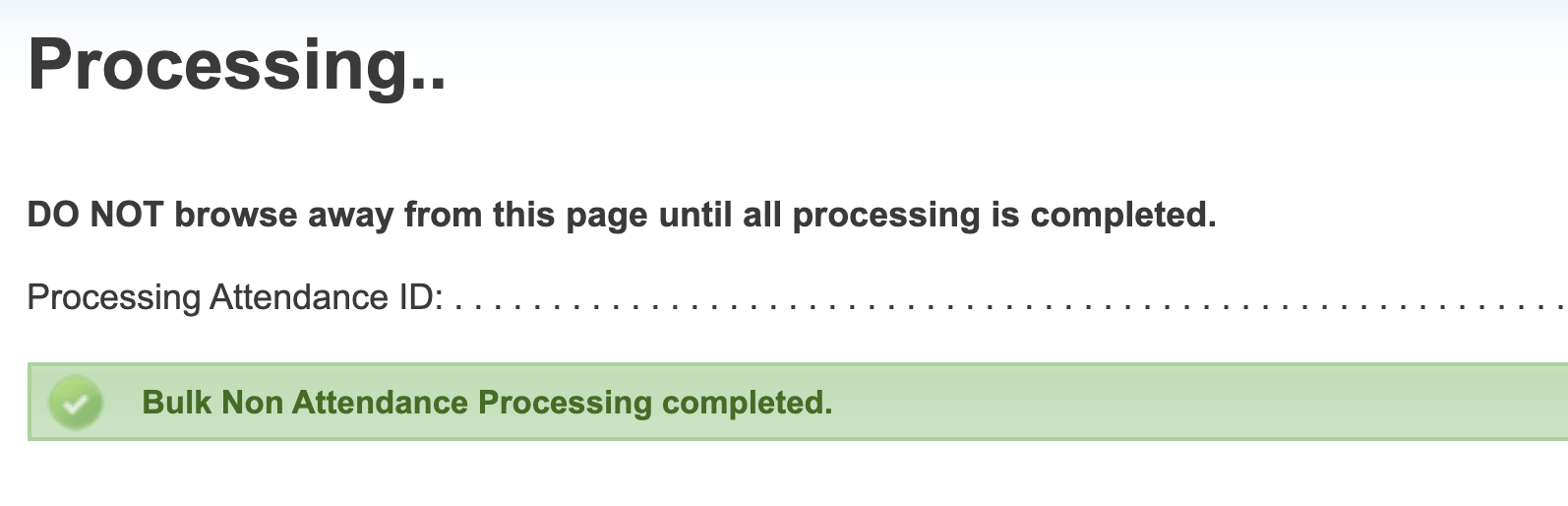
** IMPORTANT ** Stay on this screen until the process has completed and the completed tick appears. Processing time will depend on the number of students and the size of the date range. Moving away from the screen or allowing the screen to go to sleep will interrupt the process.
Further information on Bulk Non-Attendance field selection
Only the first two fields are mandatory, the remaining fields are optional if the non-attendance only applies to specific classes. One or more of these optional fields can be selected, they don't need to be completed if they don't apply.
Field | Selection |
| Non-Attendance Reason **Mandatory field** | Select a Non-Attendance Reason. (M) = a make-up will be allocated to the student (within set caps) ($) = a credit will be issued for the lesson value to the family account = the non-attendance will be recorded with no return to the student. |
Attendance Dates **Mandatory field** | Enter the start and end date of the bulk non-attendance. Enter the same date in both date fields if it is for one date. |
Class Time Optional | For ALL classes: Leave as the default selection. For specific classes: Enter the time range of the classes. |
Fee Calculation Template Optional | For ALL classes: No selection is required. For classes on specific Fee Calculation Templates: 1. Tick the box AND 2. Select the applicable Fee Calculation Template(s). The box must be ticked or the selection will not apply. |
Class Level Optional | For ALL classes: No selection is required. For classes on specific Fee Calculation Templates: 1. Tick the box AND 2. Select the applicable Fee Calculation Template(s). The box must be ticked or the selection will not apply. |
Class Teacher Optional | For ALL teachers and classes: No selection is required. For classes with specific Teachers: 1. Tick the box AND 2. Select the applicable Teacher(s). The box must be ticked or the selection will not apply. |
Area Optional | For ALL areas and classes: No selection is required. For classes in specific Areas: 1. Tick the box AND 2. Select the applicable Area(s). The box must be ticked or the selection will not apply. |
Next steps
To block any make-ups being booked on the closure date and timeframe, either:
- create a Do Not Bill Period or Public Holiday (only do this if it applies to all), or
- create a make-up booking block. Refer to: How To: Block Dates or Times for Make-up Bookings
Last updated 16 June 2026
Was this article helpful?
That’s Great!
Thank you for your feedback
Sorry! We couldn't be helpful
Thank you for your feedback
Feedback sent
We appreciate your effort and will try to fix the article