Overview
Non-Attendance Reasons are used to record student absences. There is no limit to the number of reasons you can create for use by staff or families.
Non-Attendance Reasons can be created to automatically:
- issue a make-up
- issue a credit
- record a non-attendance only (no return to the student).
Setup Guide
TABLE OF CONTENTS
Before You Start
The steps in this guide only need to be followed to create additional reasons. Created reasons remain in your system.
Note: Any reasons that issue a credit are only available for staff use. If a credit reason is made available in the portal, the absence will be recorded but the credit will not be processed.
Use softer language for reasons within the portal (e.g. I am sick).
Non-Attendance names are limited to 20 characters (including spaces).

We recommend placing credit reasons towards the bottom of your sort order.
How to Create a Non-Attendance Reason
1. Go to Configuration → Non-Attendance Reasons and click on "Add Non Attendance Reason".
2. Complete the fields and click "Add Non Attendance Reason".
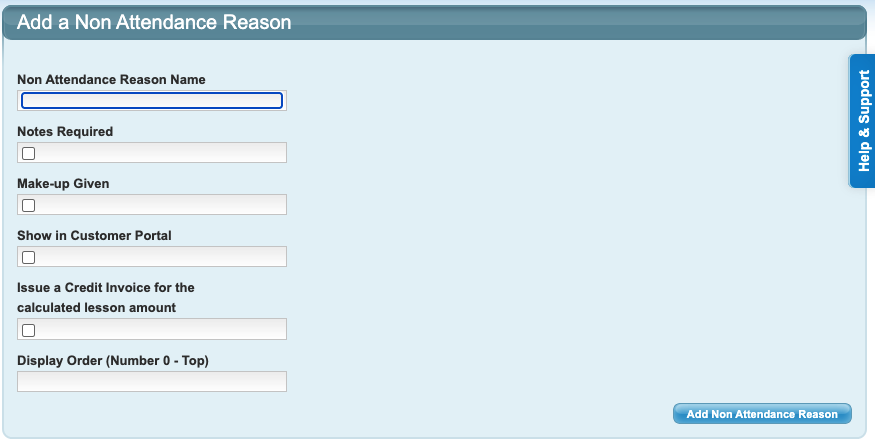
Field setup guide (* denotes a mandatory field):
Non-Attendance Reason Name * | The name that will display when used, limited to 20 characters (including spaces). |
Notes Required (checkbox) | Ticked: A notes field will display when the reason is used. Not ticked: No notes able to be added when the reason is used. |
Make-up Given (checkbox) | Ticked: A make-up will be issued when this reason is used (if allowed). Not ticked: Make-up not issued. |
Show in Customer Portal (checkbox) | Ticked: The reason will display in the customer portal as an option. Not ticked: The reason will not be available in the portal. |
Issue a Credit Invoice for the calculated lesson amount (checkbox) | Ticked: A credit matching the charged lesson value will be issued to the family account. Not ticked: Credit not issued. |
Display Order (Number 0 - Top) * | Non-Attendance Reasons will be sorted by the display order entered (0 at the top of the list). This ensures reasons always appear in the same order. We recommend placing any reasons for administrative purposes (e.g. credit reasons or reallocating make-ups) at the bottom of the sort order. |
Note: Only entering a name and a display order will record an absence without returning anything to the family (no make-up, no credit, not displayed in the portal).How to Edit a Non-Attendance Reason
1. Go to Configuration → Non-Attendance Reasons and click on the yellow edit folder next to the reason.
2. Action any changes and save by clicking on "Add Non Attendance Reason" or click back to leave the page without saving any changes.
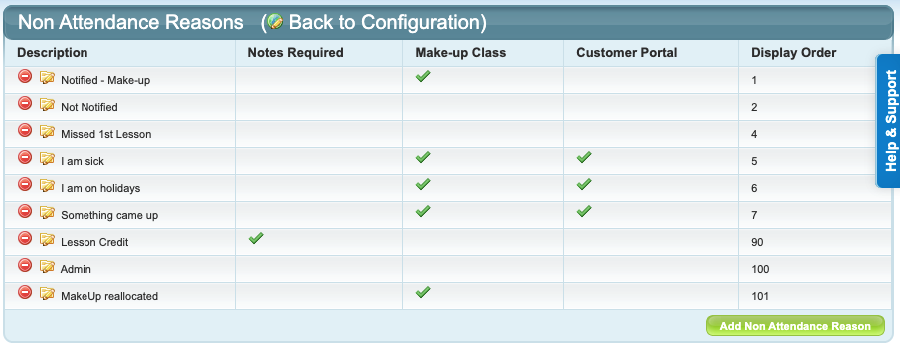
Example of basic Non-Attendance Reasons
The below examples show some basic non-attendance reasons your site will come pre-loaded with. These can be added to or edited.
Last updated 2 June 2026
Was this article helpful?
That’s Great!
Thank you for your feedback
Sorry! We couldn't be helpful
Thank you for your feedback
Feedback sent
We appreciate your effort and will try to fix the article