Overview
This guide describes how to add centre closure dates prior to generating invoicing so they will not be billed.
This does not apply to Memberships. If Memberships need to be reduced with closure dates, these need to be entered as Membership Exclusion Dates.
Setup Guide
TABLE OF CONTENTS
- Overview
- Setup Guide
- Before You Start
- How to add a Do Not Bill Period
- How to add a Public Holiday
- More information
- When to use a Public Holiday
- When to use a Do Not Bill Period
- Do I need to enter both for a closure?
- Can Do Not Bill Periods or Public Holidays be entered after generating invoicing?
- What do I do if the wrong date was entered and invoicing was run? Can I change it?
- I forgot to add in a closure date before invoicing, what do I do?
Before You Start
Know the dates you need to exclude / block from invoicing and understand who these blocks apply to. This will determine whether you use a Public Holiday or Do Not Bill Period (refer below for more information).
They need to be entered before invoicing to be excluded from billing.
To charge all dates and / or issue a make-up instead, invoice as normal without any blocked dates and process a Bulk Non-Attendance instead. Refer to: How To: Process Non-Attendance in Bulk
How to add a Do Not Bill Period
1. Go to Configuration → Do Not Bill Periods and click "Add Do Not Bill Period".
2. Complete all the fields.
Field | Response |
| Description | Name the Do Not Bill Period. This is not visible to families. Include the year for ease of reference, e.g. 2026 Christmas Closure. |
| Fee Calculation Template | Select the Fee Calculation Template this block applies to. Only Classes attached to the selected Template will have invoicing blocked for the entered dates. If the same date range applies to multiple Fee Calculation Templates, they each need to be created. |
| Start Date | Select the first date of the closure period from the date picker. |
| End Date | Select the last date of the closure period from the date picker. |
Dates are inclusive. If the closure is one single day, enter the same date.
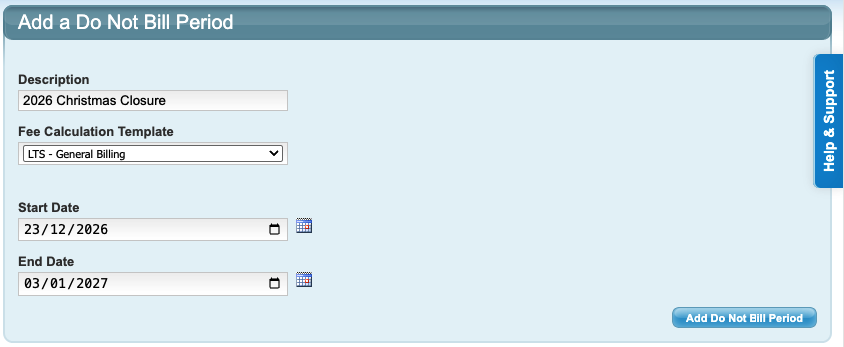
3. Click "Add Do Not Bill Period" to save.
Repeat for each Fee Calculation Template required. How to add a Public Holiday
1. Go to Configuration → Public Holidays and click "Add Public Holiday".
2. Enter the closure date and name it.
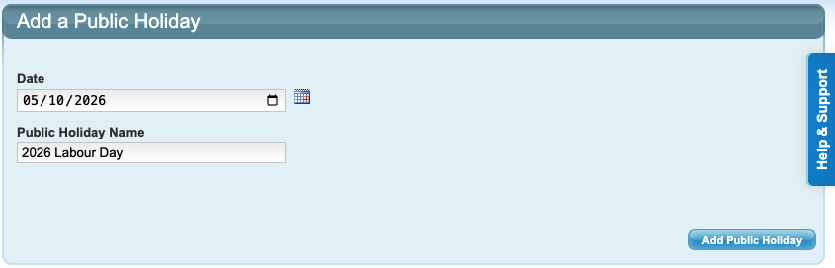
3. Click "Add Public Holiday" to save.
Repeat for each date required. More information
When to use a Public Holiday
When a single closure date applies to ALL students.
Do not use if the date noes not apply to all students OR if you want to charge certain groups for the date of the closure (use a Do Not Bill Period instead).
When to use a Do Not Bill Period
Do Not Bill Periods are set by Fee Calculation Template for a date range. Use them when a closure for a date range:
- only applies to certain Fee Calculation Templates OR
- instead of Public Holidays for a single date (if that date only applies to certain students).
If the same date range applies to multiple Fee Calculation Templates, they will each need to be entered.
Do I need to enter both for a closure?
No. If a Public Holiday falls within a Do Not Bill Period, it does not need to be entered as a Public Holiday as well.
Can Do Not Bill Periods or Public Holidays be entered after generating invoicing?
To block dates from being invoiced, they must be entered before invoice generation.
Dates entered after invoice generation will not change any existing invoices. They should still be entered so that new enrolments are not invoiced for those dates and you will need to contact Support.
What do I do if the wrong date was entered? Can I change it?
If the wrong date was blocked when invoicing and it needs to be charged, contact Support. Do not regenerate invoicing as existing invoices will not change.
If invoicing has not been generated yet, simply delete the incorrect date and enter it correctly.
I forgot to add in a closure date before invoicing, what do I do?
- Enter the Do Not Bill Period / Public Holiday now so that new enrolments are not charged that date.
- Run a Bulk Non-Attendance for students who have been invoiced.
Last updated 18 June 2026
Was this article helpful?
That’s Great!
Thank you for your feedback
Sorry! We couldn't be helpful
Thank you for your feedback
Feedback sent
We appreciate your effort and will try to fix the article