Overview
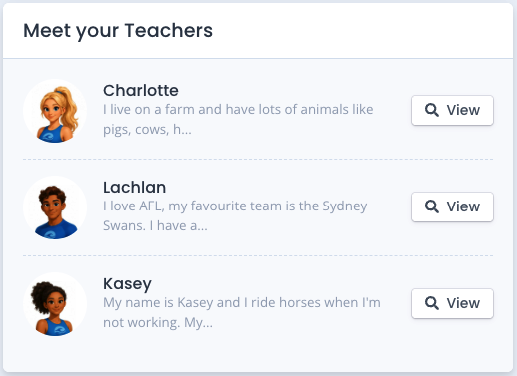
Teacher Profiles help families recognise and build familiarity with their teacher before they arrive at the centre.
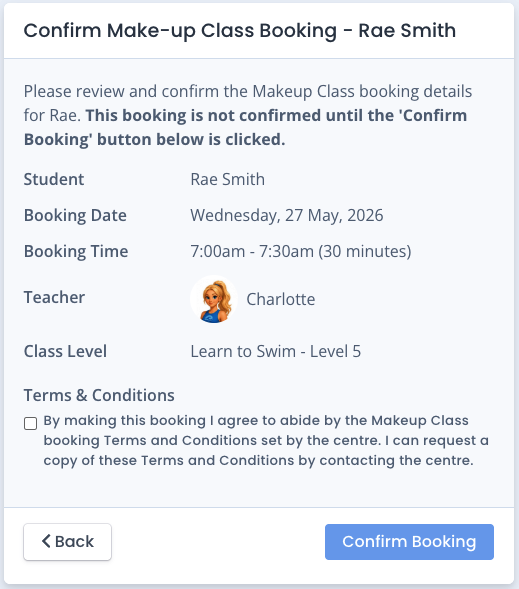
Teacher Profile pictures are especially useful for first-time visits, when nanna may be bringing the student today instead of dad, when booking a make-up or for a teacher replacement.
How-To Video
Setup Guide
TABLE OF CONTENTS
Before You Start
Have a picture ready to upload or a webcam to take a photo.
Create a Teacher Profile
Go to Configuration → Teachers and click on "Profile" on the right hand side for that teacher.
Steps
- Enter a short profile blurb introducing the teacher.
- Add a picture - either click on "Choose file" to select a saved image, OR click on "Capture from Webcam" to take a picture.
- Tick "enable public profile" and click "Save Profile".
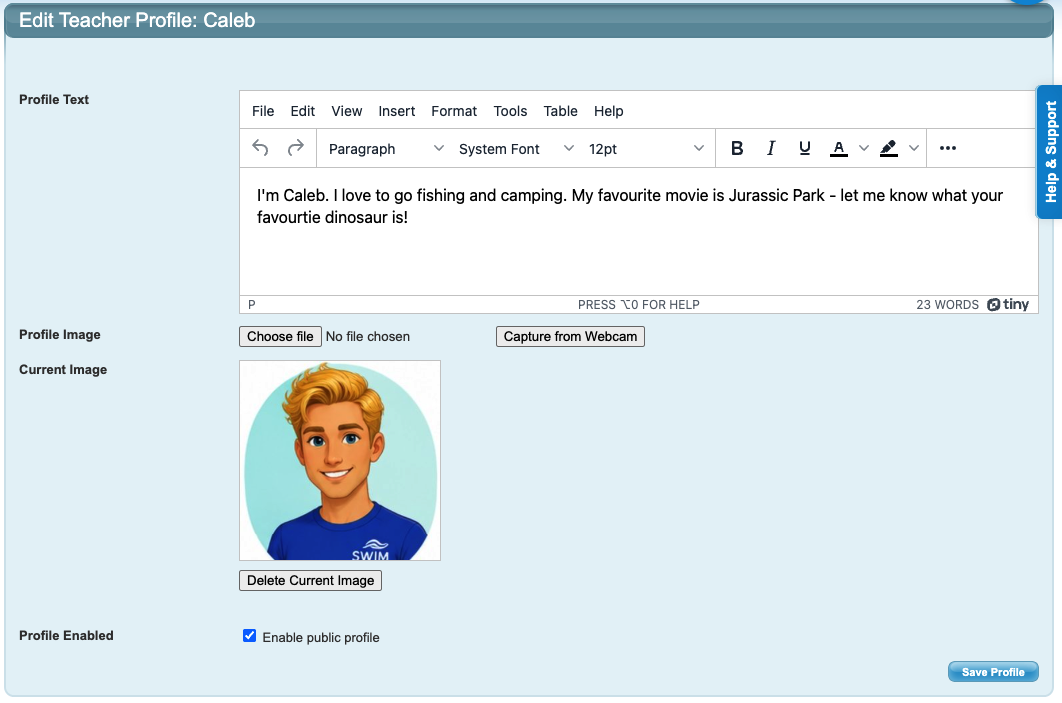
Repeat the process for each teacher.Family POV
Families can see their teacher's profiles from their Student's screen. This shows the student's regular teacher as well as any Teacher Replacements or make-up bookings:
And when booking make-up lessons before confirming their choice:
Last updated 22 June 2026
Was this article helpful?
That’s Great!
Thank you for your feedback
Sorry! We couldn't be helpful
Thank you for your feedback
Feedback sent
We appreciate your effort and will try to fix the article