Overview
Use this article to edit or add in Teacher Qualifications / information you would like to record for each Teacher. Field types can be selected to either record a date (e.g. an expiry date of that qualification), a Checkbox or a Free Text field (e.g. to enter a WWCC number, emergency contact etc).
Setup Guide
TABLE OF CONTENTS
How to Configure Teacher Qualifications
1. Go to Configuration → Teacher Qualifications.
2. Click "Add Teacher Qualification".
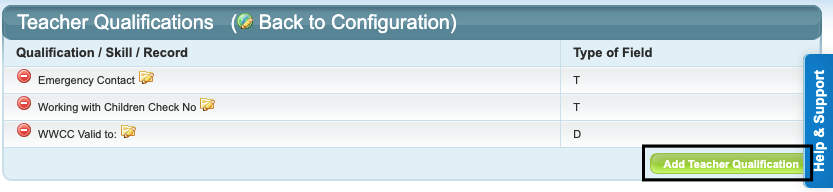
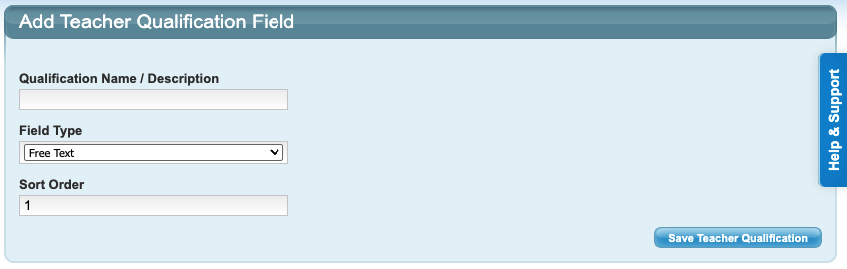
3. Complete the fields and click "Save Teacher Qualification".
Qualification Name / Description | Name the Qualification / information record. |
Field Type | Select the field type for this qualification / information record. Free Text = a free text field to type in a response Date = a date field to record an expiry date Check Box = a tick box |
Sort Order | Enter a sort order for the qualification / information records to appear. |
Qualification fields will appear on each Teacher and can be actioned on their Teacher information at Configuration → Teachers.
How to Edit Teacher Qualifications
1. Go to Configuration → Teacher Qualifications.
2. Click on the yellow edit folder on the required Qualification.
3. Make required changes and click "Update Teacher Qualification".
How to Delete Teacher Qualifications
1. Go to Configuration → Teacher Qualifications.
2. Click on the red circle ⛔️ and click OK. ** Note: this is a permanent action and cannot be reversed.
Further information
Run your Teacher Information Sheet report for all completed teacher qualifications.
Last updated 22 July 2026
Was this article helpful?
That’s Great!
Thank you for your feedback
Sorry! We couldn't be helpful
Thank you for your feedback
Feedback sent
We appreciate your effort and will try to fix the article