Overview
Holiday Programs allow you to run short-term single or multi-day swimming programs. These programs can be scheduled separately from your regular classes and allow families to book and pay for sessions through SimplySwim and the SimplyPortal app.
They are ideal for:
- Intensive Learn to Swim programs
- Holiday Clinics
- Special event programs or camps
How-To Video
Setup Guide
- Create Classes and Enrolment Templates
- Billing Holiday Programs
- Enrolling Students
- Online Holiday Program Bookings
Before You Start
Used Holiday Programs previously - If you have created Holidays Programs in SimplySwim before, check the items below are done and go to Part Three.
- Class levels and Fee Calculation Template already created
- Pricing set up for the program
- Added additional lanes
If this is your first time setting up Holiday Programs in SimplySwim, you need to Create your Holiday intensive Fee Calculation Templates and Pricing Structures. Click the articles below for more instructions on those prerequisites.
Fee Calculation Template Setup
Pricing Structure Setup
Create Classes and Enrolment Templates
These steps must be completed each time you run a holiday program.
Steps
Go to Configuration → Add Multiple Classes (Holiday Intensives).
Enter the details - field descriptions and recommendations below.
When you are finished, click "Add Multiple Classes".
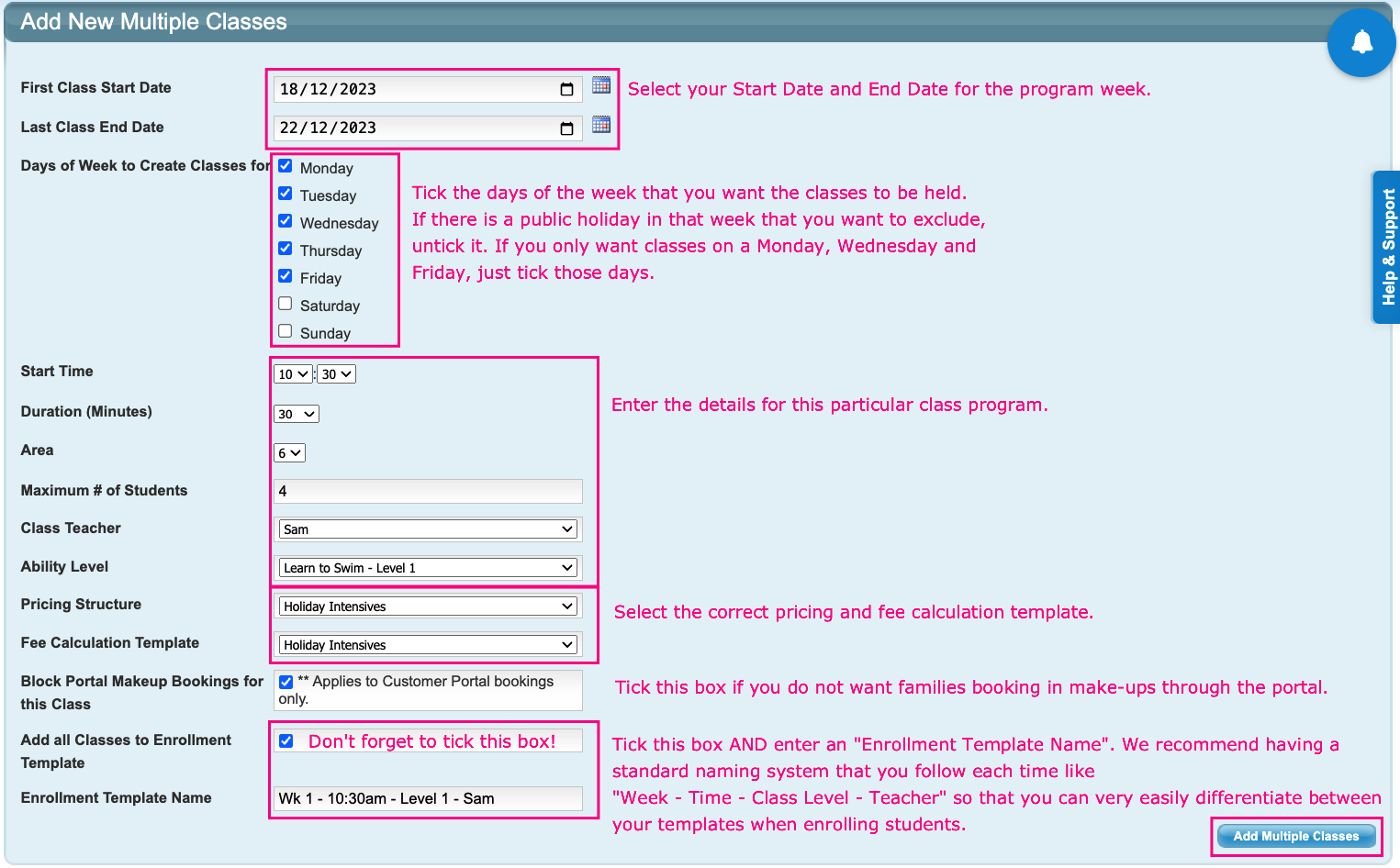
Start and End Date:
Typically you would create these classes one week at a time.
You can do multiple weeks at once BUT if you are adding the classes into an enrolment template (which you will want to do for an intensives program), it will enrol the student in all weeks in the template. If you only want to book students in for one week out of three for example, create your classes week by week.
Days of Week to Create Classes for:
Tick the boxes for the days of the week you want the classes in that date range.
Class Details:
Enter the details as you would for creating a class: time, duration, area, max students, teacher and class level.
Price Structure and Fee Calculation Template:
Select your intensives pricing and fee calculation template. This is important to get right so that the right amount is charged for the dates of your holiday lessons and not for your regular lesson dates.
Block Portal Makeup Bookings for this Class:
If you tick this box, these classes will be blocked from make-up bookings through the customer portal.
"Add all Classes to Enrollment Template" and "Enrollment Template Name" *
It is important to tick this box and to give your enrollment template a name. The template groups all of these classes together under the one template name meaning you can click to enrol a student into this template and it will enrol them into all of the classes in that template, you don't need to enrol into each class individually. For this reason we recommend that you have some kind of standard naming system that you use, like:
Week - Time - Class Level - Class Teacher
and that you sort your templates in order of week and time just to make it easy when you are going through your lists to enrol.
Repeat this step for each of your classes that you need to add to your holiday program.
*If you forget to tick the box to add the classes to an enrolment template, that's ok, you can create a template and add the classes you have created into a template, you do not need to create the classes again. Refer to these articles:
Creating Multi Class Enrolment Templates
Editing Multi Class Enrolment Templates in Bulk
Billing Holiday Programs
You will need to run billing to invoice your holiday program, which will generate fees and attendances:
Steps
Go to Administration → Click "Generate Lesson Invoices"
Enter the Start and End Dates of your program.
Select your holiday program Fee Calculation Template
Complete the Invoice Generation process.
Enrolling Students
To manually enrol students into the program, use the "New Multi Class Enrolment" button on the student Screen.
For more information refer to the following article "Enrolling a Student Into a Multi Class Template"
Online Holiday Program Bookings
Allow your families to book in online by setting up Online Program Bookings.
For more information refer to the following article Online Program Bookings: Overview
Last updated 16 March 2026
Was this article helpful?
That’s Great!
Thank you for your feedback
Sorry! We couldn't be helpful
Thank you for your feedback
Feedback sent
We appreciate your effort and will try to fix the article