Overview
Holiday Programs allow you to run short-term single or multi-day swimming programs. These programs can be scheduled separately from your regular classes and allow families to book and pay for sessions through SimplySwim (bookings over the counter) and the SimplyPortal app (self-serve).
They are ideal for:
- Intensive Learn to Swim programs
- Holiday Clinics
- Special event programs or camps
How-To Video
Setup Guide
TABLE OF CONTENTS
Before You Start
Used Holiday Programs previously
If you have created Holidays Programs in your site before, check / update the items below and proceed to creating your Holiday Classes:
- Class levels and Fee Calculation Template
- Pricing set up for the program - is there a price change?
- Add additional lanes if required.
First time Holiday Program setup
If this is your first time setting up Holiday programs in your centre, you need to create your Holiday Intensive Fee Calculation Template and Pricing Structures before proceeding to the next steps.
Click the articles below for more instructions on those prerequisites.
How To: Configure Fee Calculation Templates
How To: Update Lesson Pricing (Price Levels)
How To: Setup a Price Level or How To: Update Lesson Pricing (Price Levels)
Step One: Create Classes and Enrolment Templates
These steps must be completed each time you run a holiday program. They allow you to create the classes in bulk for a short date range.
Create each week and timeslot separately.
Steps
- Go to Configuration → Add Multiple Classes (Holiday Intensives).
- Enter the details - field descriptions and recommendations below.
- When you are finished, click "Add Multiple Classes".
Field | Response / Recommendations |
First Class Start Date | The FIRST class date in the program being created (e.g. start of the week). |
Last Class End Date | The LAST class date in the program being created (e.g. end of the week). |
Days of Week to Create Classes for | Untick the boxes for any days not required. Leave ticked for days of classes. |
Start Time | The Start Time of the class in the program being created. |
Duration (Minutes) | Duration of the class. |
Area | The Area for the class. |
Maximum # of Students | Total students for the class. |
Class Teacher | Select a teacher. If uncertain at time of class creation, create a teacher "TBC" or "Instructor". The details can be edited later once confirmed. |
Ability Level | Level of the class. Use the same as your regular class levels. |
Pricing Structure | Select your holiday program pricing. |
Fee Calculation Template | Select your holiday program fee calculation template. |
Block Portal Makeup Bookings for this Class | TICK: to BLOCK makeups being booked into the holiday program (recommended). Do not tick: if you want to allow makeup bookings into the holiday program. |
Add all Classes to Enrolment Template * | TICK. This is important. In tandem with the setting below, this will create an enrolment template grouping these classes together so a student can enrol into all classes at once (rather than individually). If you forget to tick the box, the classes will still be created and you can add them to an enrolment template as a separate step - do not create the classes again. |
| Enrolment Template Name * | Enter a name for this enrolment template. We recommend following a naming convention to easily locate each program e.g. Week - Time - Level - Teacher Wk 1 - 10:30am - Level 1 - Sam |
* these fields must both be completed in tandem.
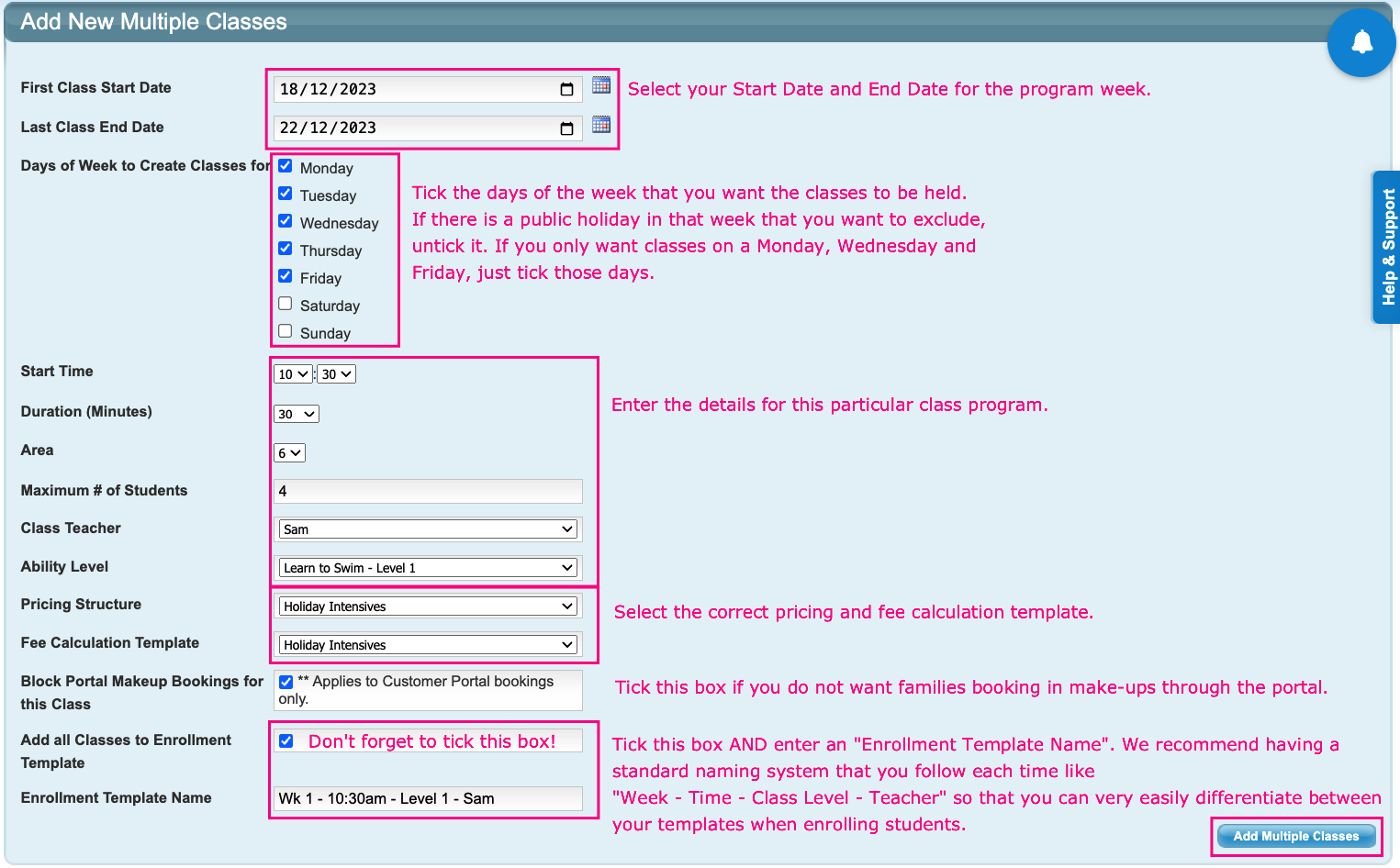
Repeat these steps for each class that needs to be created for your holiday program.
Each timeslot and week needs to be created separately.
To check / edit class settings in your enrolment templates, refer to: Editing Multi Class Enrolment Templates in Bulk

To create Enrolment Templates from created classes, refer to: Creating Multi Class Enrolment Templates

Note: Deleting an enrolment template does not delete the classes.
Step Two: Billing Holiday Programs
Invoicing needs to be run for your holiday program to generate fees and attendances.
Steps
- Go to Administration → Generate Lesson Invoices.
- Select your holiday program Fee Calculation Template from the dropdown and click "Next".
- Enter the Start and End Dates of your full holiday program and click "Process Lesson Invoices".
How to Enrol Students in your Holiday Program (centre bookings)
To manually enrol students into the program:
- Go to the student's screen and click the "New Multi Class Enrolment" button.
- Select the desired enrolment template and proceed with the enrolment.
For more information refer to: How To: Enrol a Student into Grouped Classes.
Online Holiday Program Bookings (bookings through the portal)
Allow families to book into your holiday program online by setting up Online Program Bookings.
For more information refer to the following article Online Program Bookings: Overview
Last updated 26 June 2026
Was this article helpful?
That’s Great!
Thank you for your feedback
Sorry! We couldn't be helpful
Thank you for your feedback
Feedback sent
We appreciate your effort and will try to fix the article