Overview
Certificates can be automatically issued to students on the completion of all skills in a Class Assessment Level.
Use this setup guide to configure your level certificates.
How-To Video
Setup Guide
TABLE OF CONTENTS
Before You Start
You will need to have your base certificate files ready to upload.
Certificate file requirements:
File type: JPG or Jpeg
File size: 2.5MB maximum file size

Recommended Document Specifications and Design Tips:
Document Size: A4. Any document size can be used, however A4 is the most common for printing.
Document Orientation: Portrait or Landscape are both accepted.
Document Margins: At least 7mm on all sides for printing.
Colour: keep in mind the amount of ink used when printing - avoid full colour backgrounds.
Borders: recommended. Even a basic border makes the certificate more defined.
Logo: include your logo and centre name. Certificates can be shared online so this is a great marketing tool.
Summary of Steps
1. Upload base certificate file.
2. Configure certificate fields.
3. Link configured certificates to Class Assessment Levels.
These steps are explained below.
Step 1: Upload Certificates
1. Go to Configuration → Certificate Layouts and click "Add Certificate Layout".
2. Name the Certificate - generally the Level name.
3. Select the Page Size. A4 is recommended.
4. Select the Page Orientation: Portrait or Landscape.
5. Click "Choose file" and locate your certificate file. This must be in JPG or Jpeg format under 2.5MB.
6. Click "Save Certificate Layout".
Step 2: Configuring Certificate Fields
1. Go to Configuration → Certificate Layouts and click on "Edit Fields" for the Certificate to be configured.
2. Tick the "Display" box for the fields to be included on the certificate.
❗️ StudentFullName or StudentFirstName should be included on the certificate as a minimum.3. Enter the field details and click "Save".
X-Axis = mm from left edge
Y-Axis = mm from top edge
Length = length in mm of the field
Height = height in mm of the line (generally 10)
Font = select the font from the dropdown box to use
Size = select the font size from the dropdown box to use
Align = the alignment of the field: Left / Centre / Right (generally centre)
Formatting = formatting of the field will be "regular" unless an override box is ticked for: Bold / Italic / Underline
EXAMPLE
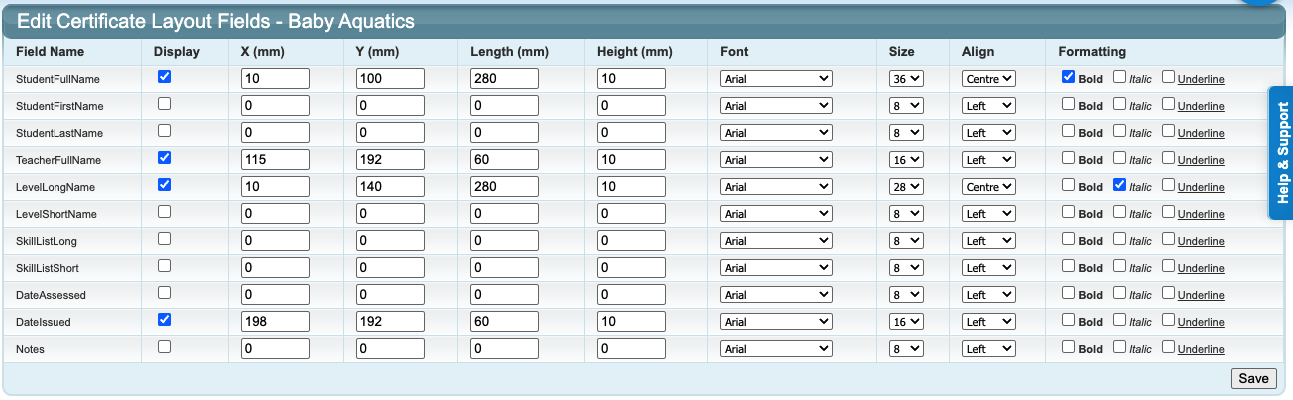
4. Click on "View Test PDF" and check the fields are aligned correctly.
You may need to go back and forth between "Edit Fields" and "View Test PDF" until you get the fields aligned.

Tip: It can be useful to measure the X- and Y-Axis measurements on a physical copy of the certificate.

If your base certificate is the same layout for each level, it makes it easier for setup - get it correct for the first and then use the same measurements for all.
EXAMPLE Completed Certificate:
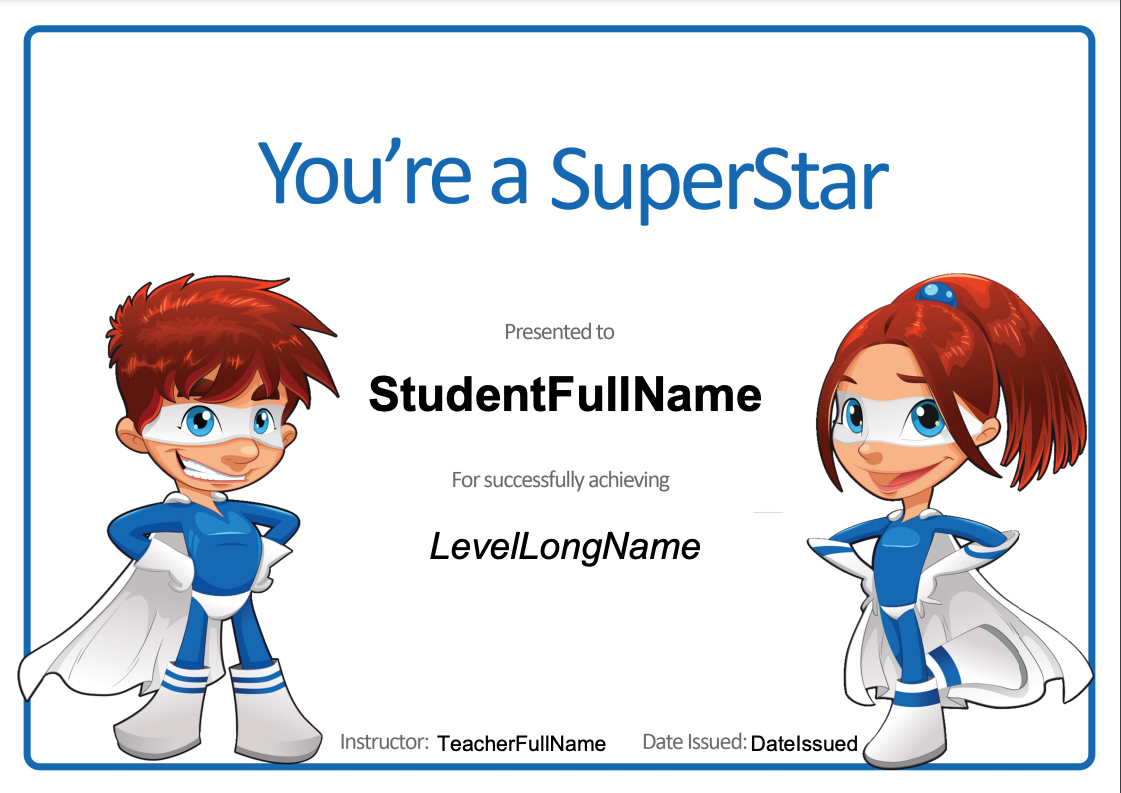
Step 3: Final step - link Certificates to Levels
1. Go to Configuration → Class Assessment Levels and click on the name of the level to be configured.
2. Select the Certificate Layout from the dropdown.
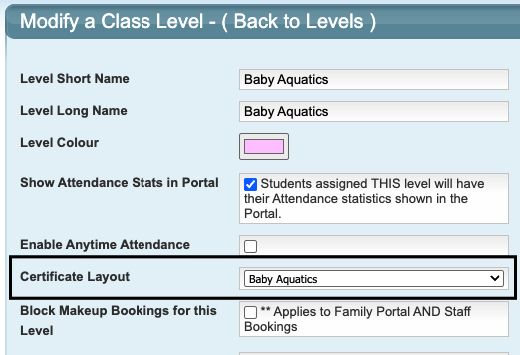
3. Click "Modify Level" to save.
Repeat for each level required.
Certificates are now configured and ready to use.
Certificate Examples
Some plain example certificates are attached to this article. We recommend using something like Canva to create certificates if you do not have any. Remember to include your centre name and logo.
❗️ Remember to include your centre name and logo on your certificates.More information and related article links
To configure level skills / progressions, refer to: How To: Configure Skills
To mark off student skills / progressions, refer to: How To: Update Student Skills
To issue Certificates, refer to: How to Issue Certificates
Last updated 30 October 2026


Was this article helpful?
That’s Great!
Thank you for your feedback
Sorry! We couldn't be helpful
Thank you for your feedback
Feedback sent
We appreciate your effort and will try to fix the article