Overview
This article guides you through updating student skills for tracking of level progression.
How-To Video
Setup Guide
TABLE OF CONTENTS
Before You Start
Each skill needs to have been configured on the Class Assessment Level. This article assumes skills have been configured.
For assistance with this, refer to: How To: Configure SkillsHow to update student skills from the Attendance screen (recommended)
This is available on the Elite subscription and above. For other plans, skills need to be updated from the individual student (refer to the next section of this article).
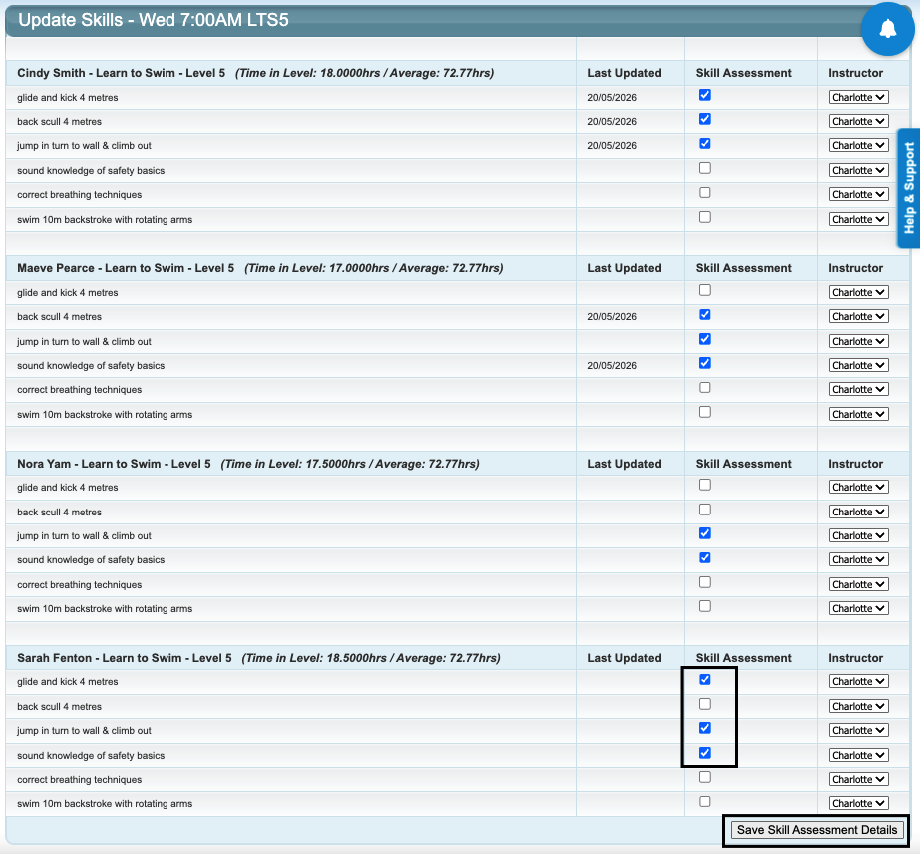
Updating from the Attendance screen will list all students in the class, displaying the skills for the level they are assigned, and automatically configured to the class instructor.
1. Go to the Attendance screen and click "Update Student Skills" on the required class.

2. Tick the box / update the sliding scale for the applicable skills and click "Save Skill Assessment Details".
Students do not need to be actioned individually when using this function. The "Last Updated" date will populate once the skill update is saved.
How to update student skills from the Student screen
This displays ALL skills for ALL levels configured in your system.
1. Go to the Student and click on "Update Skills".
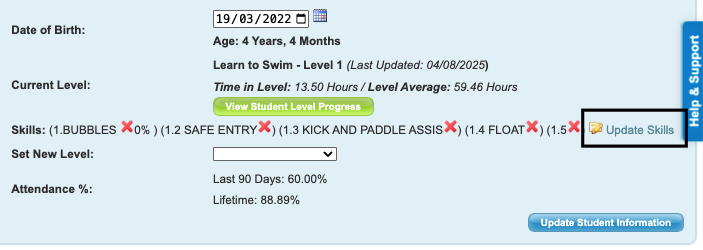
2. Locate the Student's current level and:
- tick the box / update the sliding scale for each applicable skill
- change the Instructor to the correct Instructor (listed in alphabetical order)
- click "Save Skill Assessment Details".

The updated skills are visible on the Student's screen.
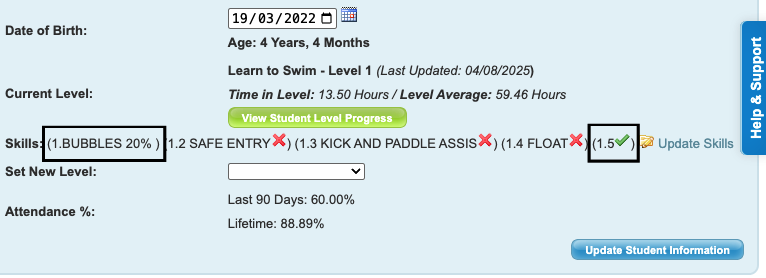
Repeat the process for each individual student.
Related article links
For assistance with issuing certificates, refer to: How to Issue Certificates
Last updated 20 July 2026
Was this article helpful?
That’s Great!
Thank you for your feedback
Sorry! We couldn't be helpful
Thank you for your feedback
Feedback sent
We appreciate your effort and will try to fix the article