Overview
Automatic Non-Attendance Notifications trigger the sending of your pre-configured Non-Attendance Messages when specific Non-Attendance reasons are used from the Attendance screen (e.g. Not Notified).
Non-Attendance Notification Setup can also be configured to trigger a Task for staff to follow up.
Setup Guide
TABLE OF CONTENTS
Before You Start
Non-Attendance Messages need to be created first to link to the Non-Attendance Notification settings.
The messages are located at Configuration → Non-Attendance Messages.
Refer to this article: How To: Setup Automatic Non-Attendance Messages
How to Configure Non-Attendance Notifications
1. Go to Configuration → Non-Attendance Notification Setup and click on "Add Non-Attendance Notification".
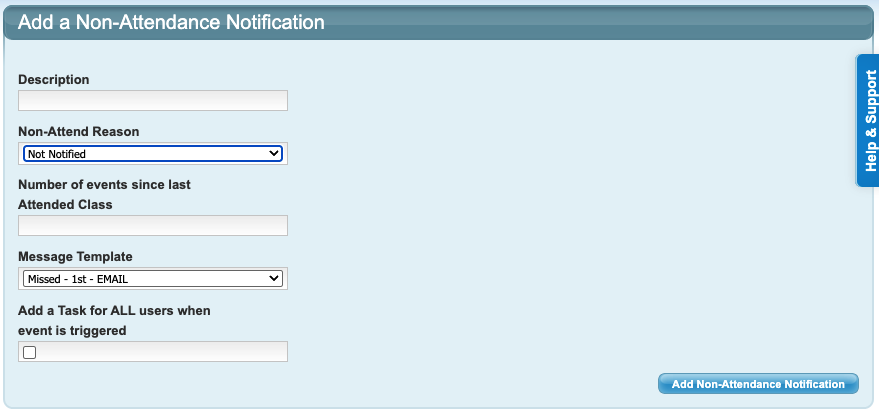
2. Complete all fields and click "Add Non-Attendance Notification". See below for further detail on each field.
Field Name | Field response |
Description | Name the non-attendance notification. Tip: Match the corresponding message name, e.g. "Missed - 1st - SMS". |
Non-Attend Reason | Select the Non-Attendance Reason from the dropdown that will be used to trigger the automatic message, e.g. "Not Notified". |
Number of events since last Attended Class | This is the number of times since the student last attended to trigger this message. For example, to send the "Missed 1st" message triggered with the Not Notified reason, the number would be 1 (as in 1 event of Not Notified since the student last attended). If the number is 3, that would mean 3 times in a row since the last attended lesson. |
Message Template | Select the Message Template to be used for this notification type. |
Add a Task for ALL users when event is triggered | Tick this box to create a Task for all Users to follow up. Tip: Trigger a task for the 3rd Not Notified attendance, or a Missed 1st Lesson. |
Repeat for each notification to be created.

There is no limit to the number of automatic notifications you can configure.
How to view or edit Non-Attendance Notifications
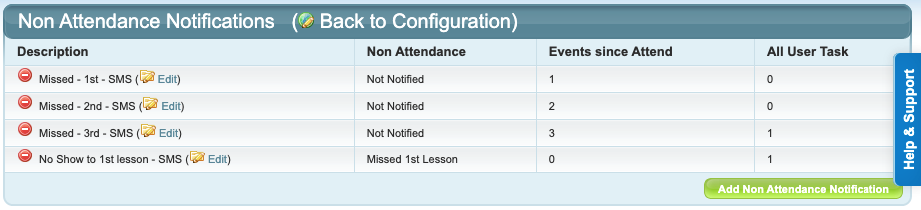
1. Go to Configuration → Non-Attendance Notification Setup. Configured notifications will display with the reason, events and task displayed.
2. Click "Edit" next to the notification description to view or update the settings.
3. Click "Save Non-Attendance Notification" to save any changes.
To edit the message content, refer to: How To: Setup Automatic Non-Attendance Messages
Example of Non-Attendance Notification Setup
Basic Non-Attendance Notification is shown below:
Last updated 4 June 2026
Was this article helpful?
That’s Great!
Thank you for your feedback
Sorry! We couldn't be helpful
Thank you for your feedback
Feedback sent
We appreciate your effort and will try to fix the article