STEP ONE: Upload the document to attach
Go to CONFIGURATION → E-MAIL ATTACHMENT STORAGE under the 'Communication Preferences' heading.
Click "Choose File", locate the document to attach and click "Upload".

The uploaded document will appear in the document list. It will remain in this list until deleted, there is no time limit.

TIP:
FORMAT: The best format to send an attachment is a PDF or JPEG as everyone can open these without a particular program, however any document type can be uploaded.
FILE SIZE LIMITS: Attachment size is limited to 2.5MB. Keep the attachment file size as small as possible.
STEP TWO: Attach the file to the message template
Go to ADMINISTRATION -> EDIT MESSAGE TEMPLATES and click on the yellow edit folder on the email message template.
Scroll to the bottom of the screen and tick the box next to the attachment to be associated with this message template and click 'Save Message Template'.
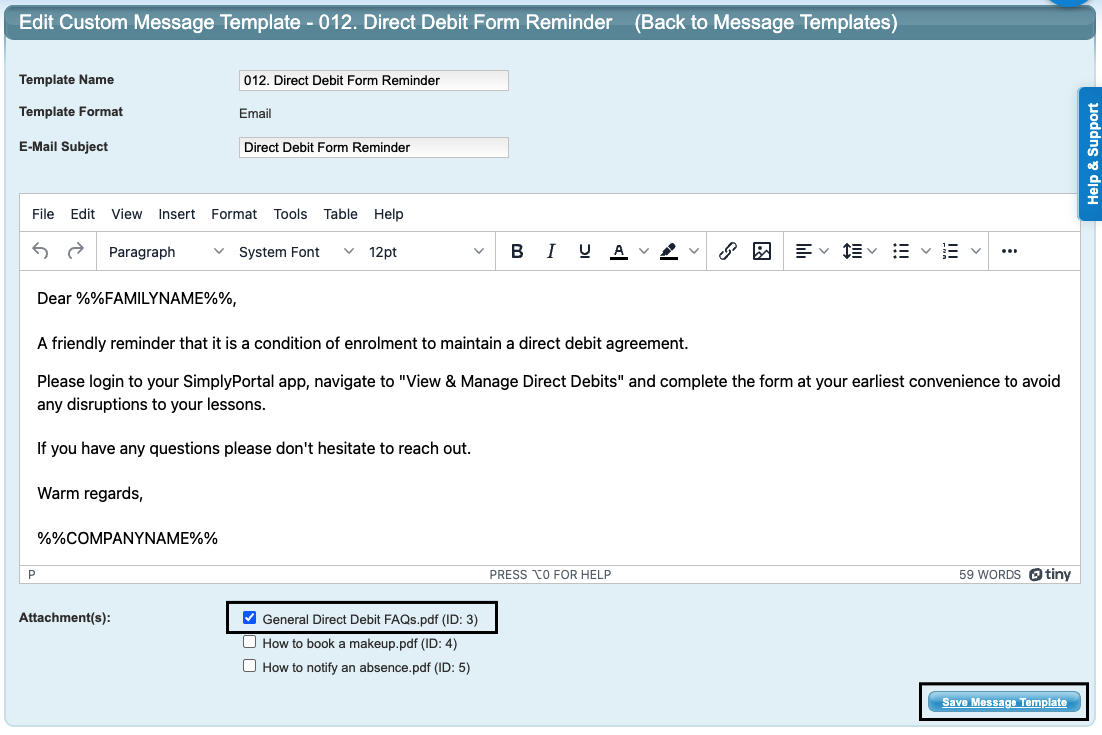
This attachment will remain on this template until removed. If changes need to be made to the document, the above steps will need to be repeated.
NOTE: Attachments cannot be included on the Statement email message template.
Last updated 08 May 2026
Was this article helpful?
That’s Great!
Thank you for your feedback
Sorry! We couldn't be helpful
Thank you for your feedback
Feedback sent
We appreciate your effort and will try to fix the article