Overview
Use this guide to configure your Booster Class settings.
Booster Classes are disabled by default. They need to be enabled to be available.
What are Booster Classes?
This feature allows families to purchase extra one-off lessons through the SimplyPortal app. These lesson bookings are outside of or in addition to their regular enrolments.
For more information, refer to: Overview: Booster Classes NEW FEATURE
Setup Guide
TABLE OF CONTENTS
Before You Start
Online payments need to be enabled for payment of Booster Class bookings.
Online Payment Settings can be checked at Configuration → Online Payment Settings. If your Centre does not currently have Online Payments configured, Worldpay for Platforms is our recommended third party payment provider. Contact Support if further assistance is needed.How to: Enable Booster Classes
As each Class in your schedule is set up on a Price Level, this is where the configuration settings for Booster Classes are located.
1. Go to Configuration → Price Level.
2. Click on the name of the Price Level.
3. Tick the box "Allow Booster Class bookings in the Family Portal for classes on this Price Level".
4. Set the amount to be charged in the "Booster Class Amount (charged per class booked in the Family Portal)".
❗️Booster Classes are charged at this configured amount. The price level default price and price matrix calculations are ignored. This allows the Booster Class price to be higher, lower or the same as a regular class.5. Enter a number of days in the last field "Booster Class Booking Window (offer classes up to (x) days ahead, counted from today)".
❗️The default setting for number of days is 14. We recommend keeping this setting low (14 days or less) to avoid bookings too far in advance, potentially impacting on permanent enrolments. Remember vacancies and bookings are updated in real time.EXAMPLE SETTINGS:
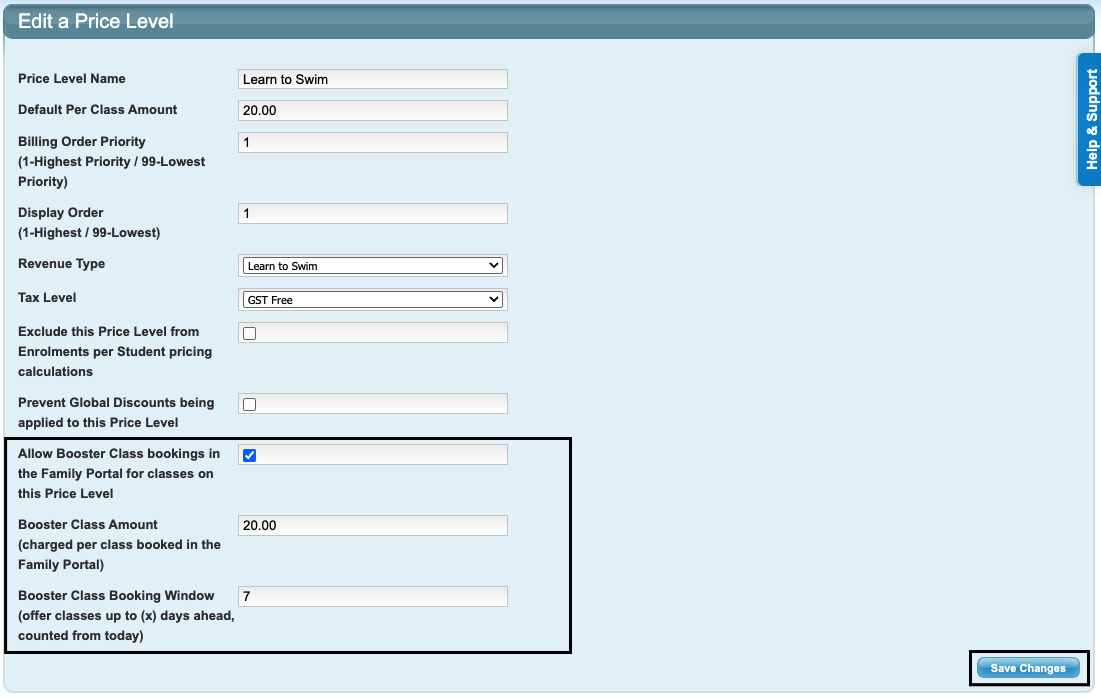
6. Click "Save Changes".
Repeat the above steps for each Price Level allowing Booster Classes.How to: Disable Booster Classes
This only applies if Booster Classes have been enabled and now need to be disabled.
1. Go to Configuration → Price Level.
2. Click on the name of the Price Level.
3. Untick the box "Allow Booster Class bookings in the Family Portal for classes on this Price Level".
4. Click "Save Changes".
Further information
For further information on Booster Classes, refer to:
How To: Block Classes for Booster Class Bookings
How To: View & Manage Booster Classes
Last updated 19 November 2026
Was this article helpful?
That’s Great!
Thank you for your feedback
Sorry! We couldn't be helpful
Thank you for your feedback
Feedback sent
We appreciate your effort and will try to fix the article