Overview
This article explains how to configure progression skills for each Class Assessment Level.
Configuring skills enables tracking and recording of student abilities and progress.
Setup Guide
TABLE OF CONTENTS
Before You Start
Class Assessment Levels need to be setup.
Refer to: How To: Configure Class Assessment LevelsHow to Configure Skills on a Class Assessment Level
1. Go to Configuration → Class Assessment Levels and click on the name of the level.
2. In the Skills section:
- type in a Short Name or a Code (abbreviation)
- add in the skill Description (full skill)
- click "Add Skill".
Field | Response / Comment |
| Short Name / Code | Enter either a code or a brief description of the skill (25 character limit). Examples of codes could be the level and skill number, e.g. L1.1, L1.2 Examples of abbreviations / short names could be: Breath, Rocket, 25m Free |
| Description | Enter the skill in full (100 character limit). |
EXAMPLE

3. Click on the yellow edit folder next to the skill.
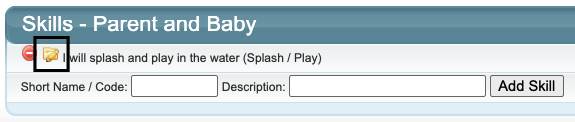
4. Enter a Display order so the skills appear in the same order each time when viewed / updated.
5. Select the Skill Type, as either:
- an achieved Tick Box (tick when completed) or
- a sliding scale (% progression).
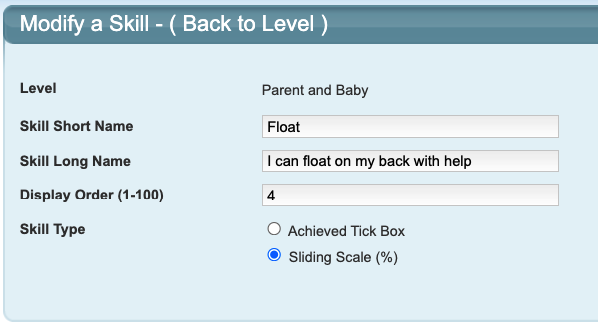
6. Click "Update" to save.
Repeat this process to add and configure each skill on each Class Assessment Level.Skill Display FAQs
Is entering a short name or a code important?
Yes.
This code / keyword / key phrase / abbreviation of the skill is a quick reference for staff.
When using a word or phrase, keep it brief.
If using codes, we recommend generally keeping the same skill type in the same order for each level for ease of reference.
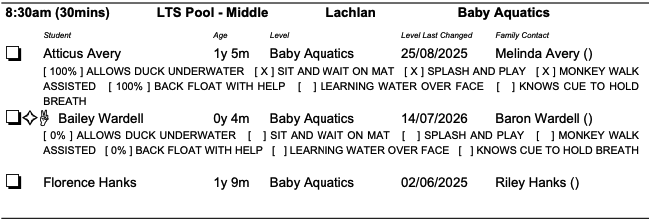
Where does the short name or code display?
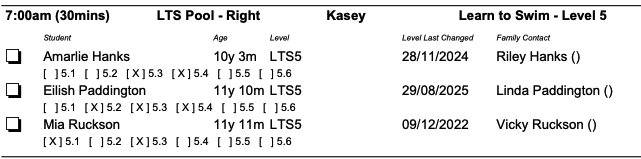
On the Attendance sheet if printing "With Skills". This is why a code or abbreviation works best.
Code example:
Keyword / abbreviation example:
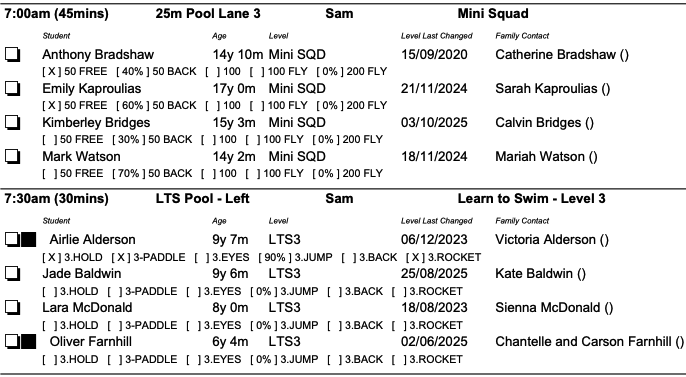
Phrase example:
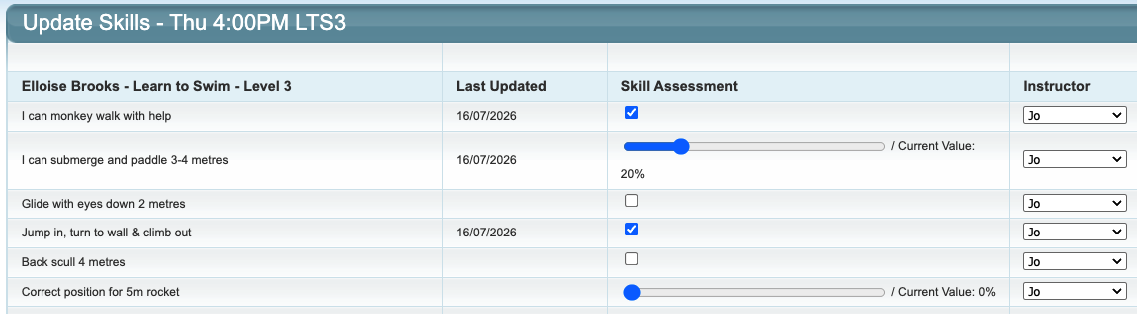
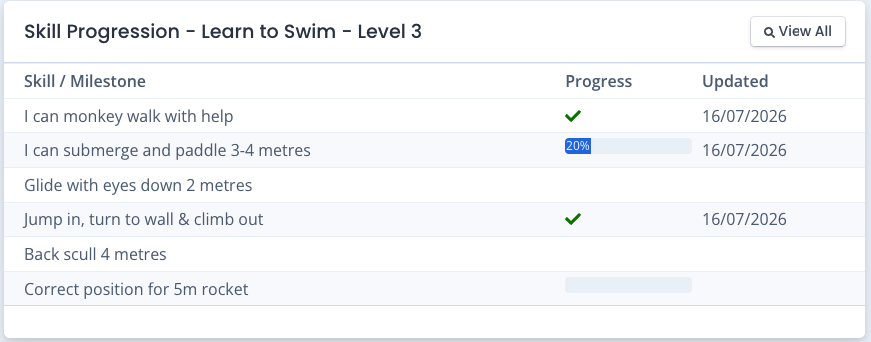
Where does the full skill display?
When updating a student's skill in the system and in the customer portal on the student.
Staff view:
Family portal view:
Related article links
For assistance updating student skills, refer to: How To: Update Student Skills
Last updated 30 October 2026
Was this article helpful?
That’s Great!
Thank you for your feedback
Sorry! We couldn't be helpful
Thank you for your feedback
Feedback sent
We appreciate your effort and will try to fix the article