Overview
Price Levels dictate the amount charged for each enrolment. Discounting can also be built into the Price Level if you offer sibling or enrolment discounts.
Setup Guide
TABLE OF CONTENTS
Before You Start
When setting up a price matrix, the default number of Students per family and Enrolments per student (per week) is each set to 6. This is the minimum recommended setting to account for possible additional classes or large families.
To increase / decrease the number of Students and / or Enrolments displayed in the Price Matrix:
1. Go to Configuration → System Setup → Price Matrix.
2. Adjust the "Price Matrix Maximum Classes" and "Price Matrix Maximum Students" and "Save Changes".
To limit discounting within a Fee Calculation Template, tick the box to "Limit Price Matrix Family / Student / Enrolment tier calculations within Fee Calculation Template" in this same section.
How to CREATE a Price Level
Step One - Setting the Default Price
1. Go to Configuration → Price Level and click "Add Price Structure".
2. Complete the fields and click "Add Price Level".
Field | Response |
Price Level Name * | Name your price level. |
Default Per Class Amount * | Enter the amount without the currency symbol. E.g. 20.00 |
Billing Order Priority | Enter a priority order or leave to 0 as the default. |
Display Order | Recommended. Enter a display order for your price levels so they appear in the same order each time when creating classes or applying an override to an enrolment. |
Revenue Type * | Select a Revenue Type to apply this pricing to (relates to Revenue reporting). |
Tax Level * | Select a Tax Level. |
Exclude this Price Level from Enrolments per Student pricing calculations | Not ticked (recommended): allows any built-in discounting will be applied accordingly. Ticked: Any built-in pricing discounts will be ignored. |
Prevent Global Discounts being applied to this Price Level | -- Only applies if Global Discounting is used at your centre. -- Not ticked (recommended): any Global discounting will be applied as configured. Ticked: makes this price level invisible to any configured Global Discounts. |
Step Two - Configuring the Price Matrix (discounting)
If you offer enrolment and / or sibling discounting, complete the Price Matrix for the Price Level.
If you do not offer enrolment or sibling discounting, the Price Matrix does not need to be completed. The default price applies to all students and all enrolments (no discounting).
1. Go to Configuration → Price Level and click on "Edit Price Matrix" on the Price Level.
2. Complete each field of the Price Matrix with the amount charged per Student and Enrolment and "Save Price Matrix".
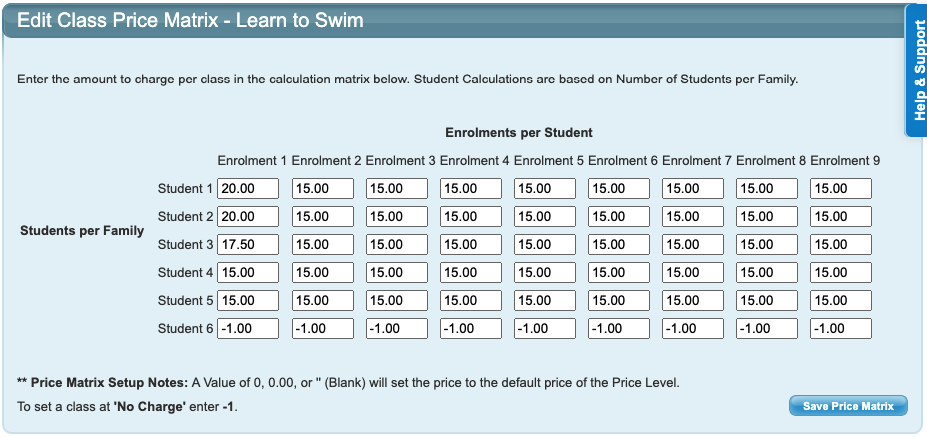
Blank field | = charge the default price set on the Price Level |
0.00 or 0 | = charge the default price set on the Price Level |
| -1.00 or -1 | = no charge |
EXAMPLES
Enrolment per week and sibling (Student per family) discount pricing configuration example. Student 6 is at no charge:
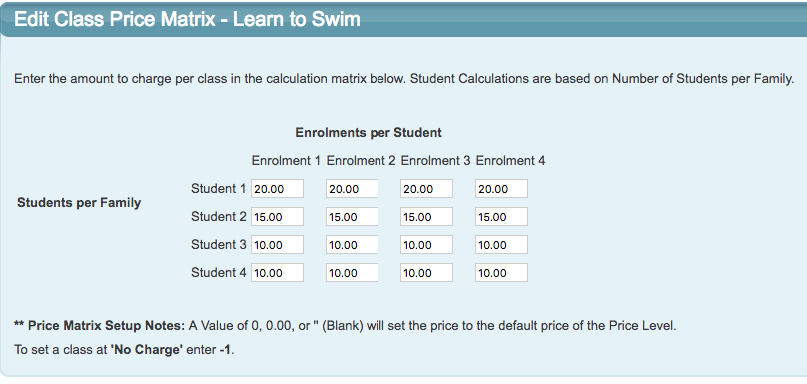
Sibling discount (student per family) but no Enrolment per week discount pricing configuration example:
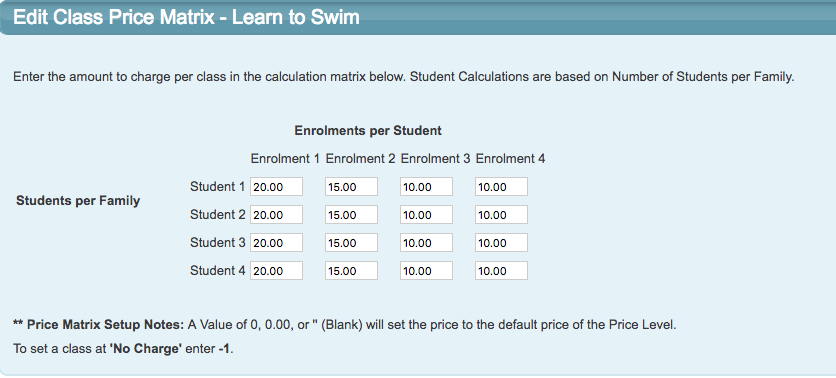
Enrolment per week discount but no sibling (student per family) discount pricing configuration example:
Repeat these steps for each Price Level that needs to be created.

There is no limit to the number of Price Levels that can be created.
How to EDIT a Price Level
To edit a Price Level, repeat the above steps to update the Default price and update the Price Matrix. For further information on updating pricing, refer to: How To: Update Lesson Pricing (Price Levels)
Next steps
Once Price Levels are created, they can be used to create a Class or as a Price Override on an enrolment.
How To: Enrol a Student into a Class
Last updated 29 June 2026
Was this article helpful?
That’s Great!
Thank you for your feedback
Sorry! We couldn't be helpful
Thank you for your feedback
Feedback sent
We appreciate your effort and will try to fix the article