Overview
Membership Exclusion Dates allow you to exclude dates from Membership invoices to reduce fees for the period. These need to be entered prior to generating Membership invoices to take effect.
How-To Video
Setup Guide
TABLE OF CONTENTS
Before You Start
You do not need to enter any Exclusion Dates if:
- your policy is to charge the full Membership fee for the period regardless of any closures
- Membership is not based on Attendance (e.g. they can attend any day).
Work out your Exclusion Dates (if any) and the Memberships they will apply to. Refer to "How Do Exclusion Dates Work?" below for further information to assist with this.
Note: Exclusions are based on dates, not days of the week.
How Do Exclusion Dates Work?
The Membership Fee will be divided by the number of days in the period to get a daily rate, and that daily rate will be deducted from the total owing for each date that is excluded.
For this reason, be careful not to exclude dates that you would normally not conduct lessons / sessions (e.g. if you do not normally operate on a Sunday, do not include the Sunday in the exclusions).
How to enter Membership Exclusion Dates
Membership Exclusion Dates need to be entered before invoices are generated to be excluded.
1. Go to Configuration → Membership Exclusion Dates.
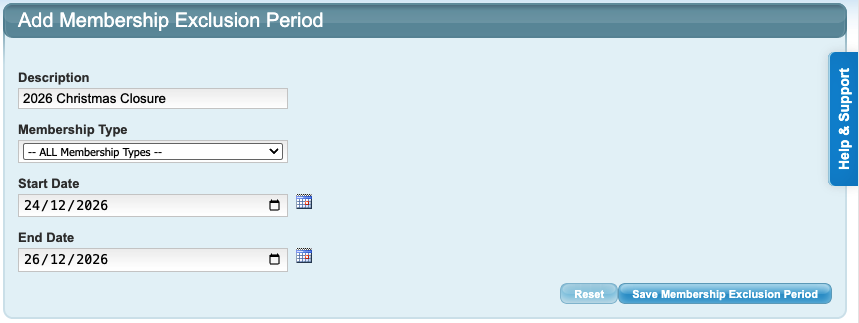
2. Click "Add Membership Exclusion Date" and complete the fields.
Field | Response |
Description | Name the exclusion period. This is not visible externally. |
Membership Type | Select the Membership Type this exclusion period applies to. -- ALL Membership Types -- or select the individual membership. If it applies to more than one, these will need to be applied individually to each applicable membership. |
Start Date | First date to be excluded from Membership Invoices. |
End Date | Last date to be excluded from Membership invoices. |
Tip: If there are overlapping dates on multiple Memberships, include these for "All Membership Types", then apply any extra dates to the individual Membership Type.

Do not include dates that you would normally not operate in the period (e.g. Sunday).
3. Click "Save Membership Exclusion Period".
Repeat for each Exclusion Period required.Next steps article links
Generate your Membership Invoices once all exclusion dates have been entered. Refer to:
How To: Generate Membership Invoices
Last updated 24 June 2026
Was this article helpful?
That’s Great!
Thank you for your feedback
Sorry! We couldn't be helpful
Thank you for your feedback
Feedback sent
We appreciate your effort and will try to fix the article