Overview
Autopay completely automates the direct debit process.
When enabled, Autopay will automatically create, process, receipt and close regular recurring direct debit batches, removing manual processing and handling.
Autopay can be configured for payment frequencies of:
- 7 days (weekly)
- 14 days (fortnightly)
- 21 days (3-weekly)
- 28 days (4-weekly).
Direct debits run on specific dates (e.g. the 1st of every month) or specific days (e.g. the first Monday of every month) cannot be configured for Autopay and would still require manual direct debit handling.
Setup Guide
TABLE OF CONTENTS
Before You Start
Autopay can only be enabled after your site has been configured for Direct Debit, including the configuration of Direct Debit Types.
If you do not have an account with out third party payment provider, Worldpay for Platforms, contact Support for assistance.
Refer to: How To: Configure Direct Debit TypesHow to Configure Autopay
From Configuration → Direct Debit Types:
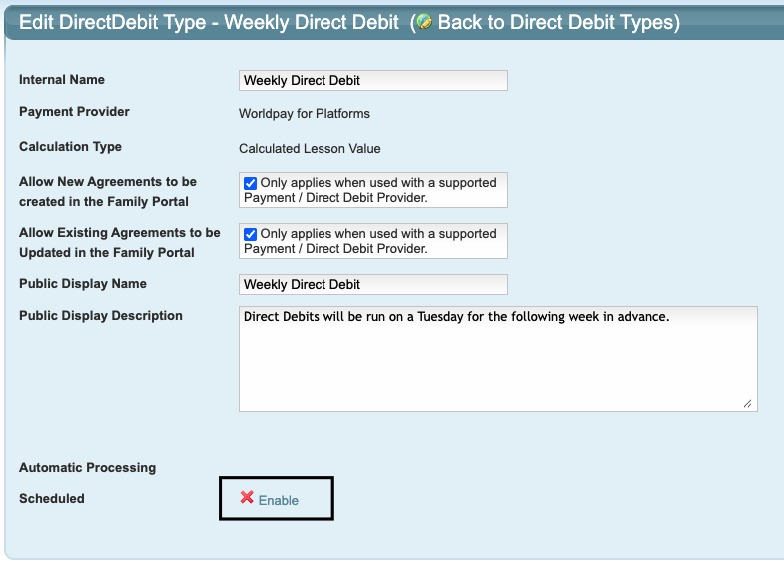
1. Click on the yellow edit folder for the Direct Debit Type to be enabled for Autopay.
2. Click "Enable".
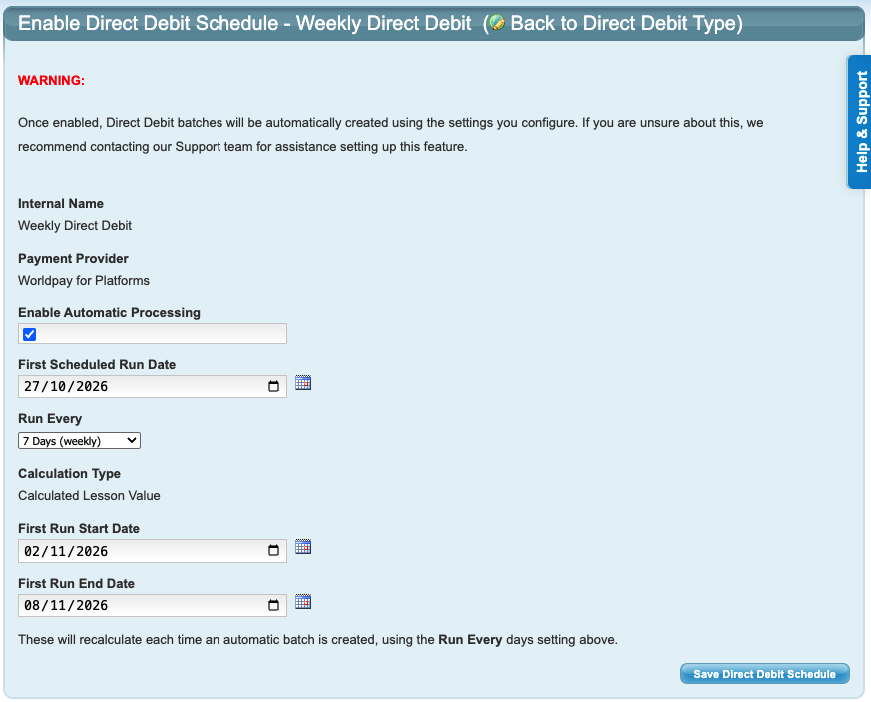
3. Tick the box to "Enable Automatic Processing".
4. Select the first date for the automatic direct debit to run. This is the date the debit will be processed.
5. Select the applicable "Run Every" cycle from the dropdown menu.
EXAMPLE: "7 days" for a weekly debit.
6. Select the "First Run Start Date" (the start date of the first autopay debit cycle).
EXAMPLE: The Monday of the week to be debited.
7. Select the "First Run End Date" (the last date of the first autopay debit cycle).
EXAMPLE: The Sunday of the week to be debited.
8. Click "Save Direct Debit Schedule".
EXAMPLE:
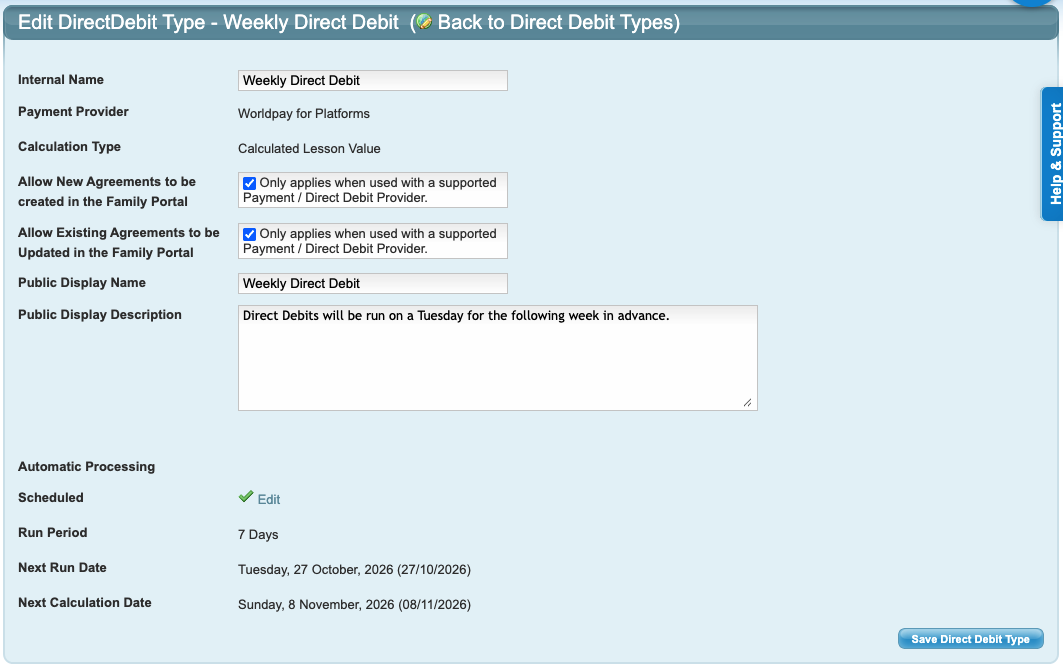
9. The next run (processing) date and end date of the cycle will be displayed. Click "Save Direct Debit Type".
Tip: We recommend creating the direct debit cycle for a Monday to Sunday so it is easy for families and staff to understand and follow.
How to Edit Autopay
From Configuration → Direct Debit Types:
1. Click on the yellow edit folder for the Direct Debit Type to be edited.
2. Click "Edit" in the Automatic Processing section.
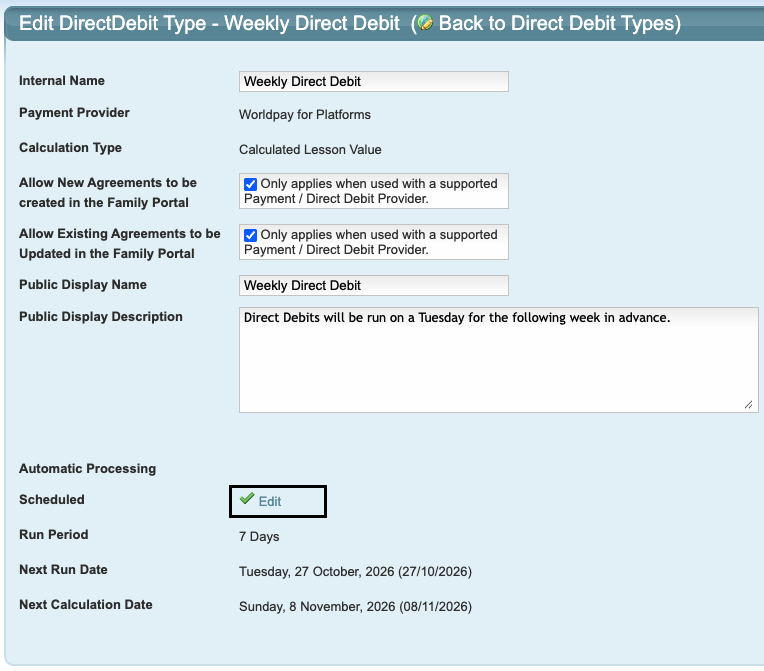
3. Make the required changes and click "Update Direct Debit Schedule".
4. Click "Save Direct Debit Type".
How to Disable / Switch off Autopay
From Configuration → Direct Debit Types:
1. Click on the yellow edit folder for the Direct Debit Type to be edited.
2. Click "Edit" in the Automatic Processing section.
3. Untick the box "Enable Automatic Processing".
4. Click "Update Direct Debit Schedule".
5. Click "Back to Direct Debit Type". The Automatic Processing section should now be blank with "Enable" as an option.
Last updated 19 October 2026
Was this article helpful?
That’s Great!
Thank you for your feedback
Sorry! We couldn't be helpful
Thank you for your feedback
Feedback sent
We appreciate your effort and will try to fix the article